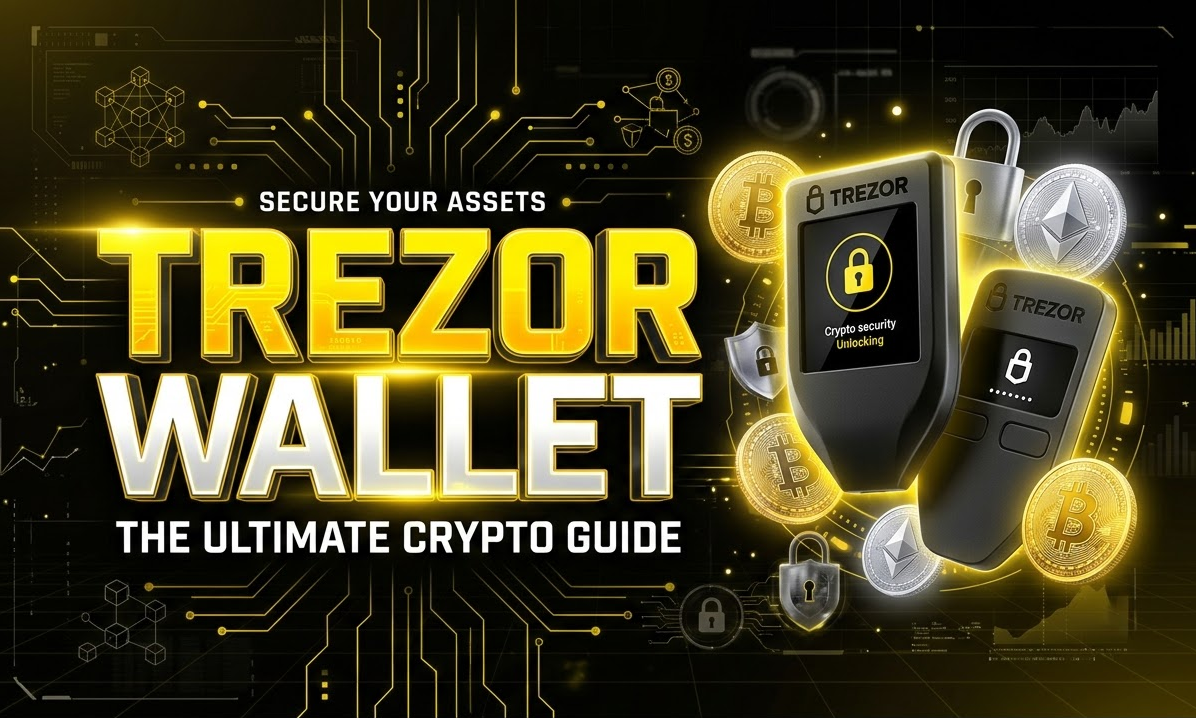
Understanding Trezor: Core Mechanics and Open-Source Security Philosophy
What Is Trezor, and How Does It Work?
That distinction matters more than it might seem. If you leave cryptocurrency on a centralized exchange, you depend on the exchange to safeguard its infrastructure and honor withdrawals. With self-custody, you control the keys, but you also take responsibility for protecting them. A Trezor helps by isolating key operations from the everyday computer or phone you use to access crypto.
According to Trezor’s official hardware-wallet guide, its security model combines a dedicated signing device, recovery backups, and software that lets users manage supported assets. The company also makes its software code available for public inspection, giving independent researchers an opportunity to examine the implementation rather than requiring everyone to trust a closed system.
I would focus on that last step when evaluating any hardware wallet: does the device let you verify what you are signing, and can you keep your recovery information safe? A sophisticated chip is valuable, but it cannot rescue you if you approve a malicious transaction or reveal your recovery words to a fake support agent.
Trezor’s History and Evolution: From Model One to the Safe Family
Trezor is closely associated with the early development of consumer hardware wallets. Its company history traces the project to 2013, followed by the launch of the Trezor Model One on July 29, 2014. The Model T followed in 2018, bringing a color touchscreen to the product family, while Shamir Backup and the SLIP39 recovery standard became part of Trezor’s security story in 2019. These milestones are summarized in the company’s official history of Trezor.
That timeline is useful because it shows how hardware-wallet design has evolved. Early devices concentrated on one main problem: separating private-key operations from a general-purpose computer. Later models added more convenient interfaces, dedicated secure elements, improved transaction verification, and more flexible recovery methods.
The original Model One helped establish the basic approach. The Model T made on-device interaction easier with its touchscreen. The Safe series brought additional hardware protections, and the Safe 7 introduced a more elaborate architecture combining two secure elements with a hardened microcontroller, plus wireless connectivity for compatible devices. These are not simply cosmetic upgrades; each generation changes the balance between price, usability, physical protection, and connectivity.
There is an important product-status detail for anyone shopping in 2026: Trezor says the Model One and Model T stopped being sold through its own online shop on January 8, 2026, although they remain safe to use when properly configured and backed up. The company has also stated that support will continue for those models. If you are considering a used device, however, buying from an unknown seller introduces avoidable supply-chain risk.
How Trezor Keeps Private Keys Isolated?
A typical transaction follows a straightforward sequence:
Prepare the transaction
You choose the recipient, amount, network, and fee in Trezor Suite or a compatible wallet.
Send the unsigned transaction to the device
The computer communicates the transaction data to your Trezor, but it does not receive the private key.
Review and approve on the Trezor
Check the address, amount, network, and other displayed details before confirming the transaction on the device.
Broadcast the signed transaction
Compatible software sends the signed transaction to the network, where it can be validated and included in a block.
This separation reduces the risk of ordinary computer malware extracting your keys. It does not make every transaction safe, though. Malware can sometimes replace a destination address, a malicious website can ask you to authorize a dangerous smart-contract interaction, and a user can approve a transaction without understanding it.
That is why I recommend treating the physical screen as a verification checkpoint, not just a button to click through. If the destination or amount does not match what you intended, stop and investigate before approving.
The Open-Source Advantage: Transparency Without Overpromising
Trezor’s open-source philosophy means its software and hardware designs are made available for public examination. You can review code, follow firmware development, and inspect technical documentation rather than relying solely on a manufacturer’s promise that its product behaves as intended. Its hardware-wallet fundamentals guide explains this approach and the product family’s evolution.
Open source is a genuine security advantage, but it is not a magical guarantee. Public code can still contain bugs, a build process can introduce problems, and a physical device can be tampered with before it reaches you. The strongest security approach combines transparent design with independent scrutiny, secure manufacturing, device authentication, and sensible user practices.
This distinction is particularly relevant when comparing secure elements. Some chips are designed around proprietary documentation and restrictions on independent inspection; Trezor’s approach is to combine a conventional certified secure element with its own auditable chip technology on the Safe 7. The aim is to benefit from hardware protections without making the entire trust model depend on an opaque component.
Secure Elements: Safe 3, Safe 5, and Safe 7
A secure element is a specialized chip designed to protect sensitive information and enforce security controls. On the Safe 3 and Safe 5, Trezor uses the OPTIGA Trust M (V3) secure element. The Safe 7 combines that chip with TROPIC01 and a hardened main microcontroller, creating three hardware security layers. Trezor describes the architecture in its secure-element documentation.
Trezor Model Ecosystem Breakdown
Choosing a Trezor is less about finding the device with the longest specification sheet and more about deciding how you want to use it. If you buy Bitcoin once a month and leave it untouched for years, you probably do not need the same setup as someone signing DeFi transactions every day from a phone.
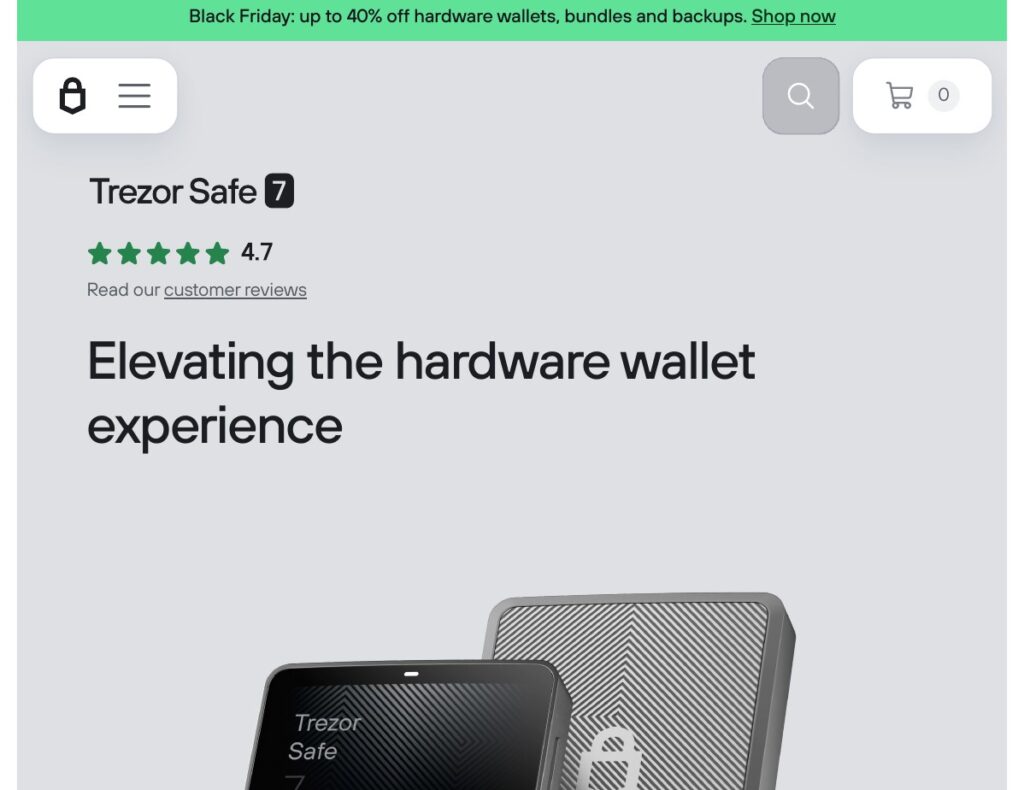
The comparison below focuses on the main differences between the models, including their interface, hardware protections, and practical use cases. For the most current specifications, use Trezor’s official hardware-wallet comparison page rather than relying on an old product review, since model availability and firmware features can change.
Trezor Hardware Comparison Matrix
| Feature | Model One | Model T | Safe 3 | Safe 5 | Safe 7 |
|---|---|---|---|---|---|
| Interface | Two physical buttons, monochrome screen | Color touchscreen | Two-button monochrome OLED | Color touchscreen with haptic feedback | Large color touchscreen with haptics |
| Secure element | No dedicated secure element | No dedicated secure element | OPTIGA Trust M (V3) | OPTIGA Trust M (V3) | OPTIGA Trust M (V3) and TROPIC01 |
| Connectivity | USB | USB-C | USB-C | USB-C | USB-C and Bluetooth |
| Wireless charging | No | No | No | No | Qi2-compatible wireless charging |
| Backup options | Standard recovery backup | Standard backup and supported Shamir options | Standard backup and supported Shamir options | Standard backup and supported Shamir options | Standard backup and supported Shamir options |
| Best fit | Basic, budget-conscious cold storage | Users who prefer a touchscreen on an older model | Affordable modern hardware protection | Premium everyday use | Wireless convenience and advanced hardware security |
Model features are based on Trezor’s published specifications and may depend on firmware, wallet configuration, or regional availability. Check the official model pages before purchasing.
Legacy Workhorses: Trezor Model One and Model T
The Model One remains an important product historically because it demonstrated that private-key security could be made practical for ordinary cryptocurrency users. Its simple interface is not glamorous, but it is enough for basic operations such as receiving Bitcoin, checking an address, and signing a transaction.
Its age is also the reason to consider the trade-offs carefully. It lacks the dedicated secure element found in the Safe series, and its smaller monochrome screen provides less information when you are reviewing complicated transactions. For straightforward Bitcoin storage, those limitations may be manageable; for regular smart-contract interactions, I would prefer a newer device that supports clearer on-device transaction information.
The Model T brought a color touchscreen and a more comfortable recovery experience. Entering information on the device can be easier than working through a button-based interface, especially when you need to navigate settings or use advanced wallet features.
Both legacy devices have reached the end of their retail sales lifecycle at Trezor’s official store, according to the company’s January 2026 update. That does not automatically make an existing device unsafe, but it does mean prospective buyers should compare current Safe-series models before paying a premium for a second-hand Model T.
Trezor Safe 3: A Sensible Starting Point
The Safe 3 is a strong starting point for users who want dedicated hardware protection without paying for a premium touchscreen. It uses a two-button interface and a monochrome OLED display, so the experience is intentionally simple. You connect it to compatible software, follow the setup instructions, create a backup, and use the physical device to approve transactions.
Its dedicated OPTIGA Trust M (V3) secure element adds hardware protections that distinguish it from the Model One and Model T. The chip helps enforce PIN protection, contributes secure randomness, and supports device-authentication checks. Trezor explains these functions in its Secure Elements in Trezor Safe devices guide.
For someone who mainly buys Bitcoin or Ethereum and transfers it to cold storage, the Safe 3 is often the most sensible place to begin. You are paying for security and essential functionality rather than an elaborate interface you may rarely use.
Trezor Safe 5: A More Comfortable Everyday Experience
The Safe 5 is aimed at people who want modern hardware security with a more comfortable display and interaction model. Its color touchscreen and haptic feedback make navigating the wallet more intuitive, particularly when you use it frequently or manage several accounts.
The benefits are not merely cosmetic. A screen that is easier to read can make transaction review less frustrating, and physical confirmation helps separate signing from the actions taking place on your computer. Still, a better screen does not eliminate the need to inspect transaction details carefully.
I would consider the Safe 5 if you use your wallet regularly, move between several assets, or interact with compatible Web3 applications but do not need the Safe 7’s wireless functionality. It is a practical middle ground between the Safe 3’s simplicity and the flagship’s additional connectivity features.
Trezor Safe 7: Wireless Convenience and Layered Hardware Security
The Safe 7 is the flagship option in the current model family described by Trezor. It combines a high-resolution color touchscreen with Bluetooth connectivity, USB-C, and Qi2-compatible wireless charging. Its security architecture includes the OPTIGA Trust M (V3) secure element, the TROPIC01 secure element, and a hardened main microcontroller. Trezor’s hardware security overview provides further technical details.
The wireless capability is particularly useful if you prefer managing assets from a compatible phone rather than keeping a cable attached to a computer. It also addresses a long-standing practical limitation for iPhone users: older Trezor models have more restricted iOS transaction-signing support, whereas the Safe 7 supports full mobile functionality through its Bluetooth connection. Trezor outlines these differences on its official Trezor Suite page.
Does that mean everyone should buy the Safe 7? Not necessarily. If you rarely move funds and mainly want a device for long-term storage, the extra convenience may not justify the additional cost. If you regularly use a phone, value a larger touchscreen, and want the Safe family’s more advanced hardware design, the flagship makes a stronger case.
Bitcoin-Only Firmware: Less Complexity for Bitcoin Purists
Trezor offers a Bitcoin-only firmware option that disables support for other crypto networks on compatible devices. Instead of maintaining a general-purpose wallet environment, you can configure the device to work specifically with Bitcoin. The company’s Bitcoin-only firmware guide explains how to install or switch firmware through Trezor Suite.
There is a reasonable security argument for this approach: fewer enabled features can mean fewer components and less complexity to maintain. Trezor notes that Bitcoin-only firmware can reduce exposure to bugs or security issues associated with features that Bitcoin-only users do not need. It also means other networks will not appear in the normal interface while that firmware is installed.
However, do not switch firmware casually. The process can wipe the device, so make sure you have a valid backup before proceeding. If you later decide to use other networks, you can return to Universal firmware on supported models. For a dedicated Bitcoin holder, this is a useful option; for a multi-chain investor, Universal firmware is usually more convenient.
Advanced Cryptographic Safeguards
A hardware wallet is only as resilient as the recovery plan behind it. You might choose a device with excellent physical protections, but if you lose the backup, forget a passphrase, or leave recovery words where someone can photograph them, the security of the device becomes much less relevant.
Two features deserve particular attention: passphrase-protected wallets and Shamir Backup. They address different problems, and neither should be treated as a substitute for careful planning.
The Hidden Wallet: Understanding the Passphrase
Trezor supports an optional passphrase that works alongside your recovery backup to generate a distinct wallet. People sometimes call it the “25th word,” but that description is misleading: a passphrase is not necessarily one word, and it is not simply appended to the seed as another ordinary recovery word.
The device combines the wallet backup with the exact passphrase you enter. Different passphrases produce different wallets, including wallets with no funds. The passphrase is case-sensitive, and Trezor does not store it for you, so you must be able to reproduce it accurately whenever you need access to the associated wallet. The official passphrase guide explains how this mechanism works and why losing the passphrase can permanently lock you out of the associated funds.
Here is a simplified example:
-
Your standard recovery backup restores your regular wallet.
-
You enter a separate passphrase, such as a carefully chosen string, to open a different wallet.
-
You send assets to addresses belonging to that passphrase-protected wallet.
-
In the future, you need both the original backup and the exact same passphrase to restore access.
This can add another layer of protection if someone obtains your recovery words but does not know the passphrase. It can also make wallet organization more flexible. However, it is not a magic “invisible wallet” guarantee: transaction history is public on most blockchains, and anyone who knows an address can inspect its on-chain activity.
A decoy-wallet strategy is sometimes discussed as a defense against coercion, but it carries serious personal and operational risks. Do not assume that a hidden wallet provides reliable protection against physical threats, legal obligations, or sophisticated investigation. If you choose to use a passphrase, focus on safe storage and recoverability rather than relying on plausible deniability.
My practical advice is simple: use a passphrase only if you understand the recovery implications, store it separately from your seed backup, and test the complete recovery procedure with a small amount before transferring a substantial balance. Never store it in a screenshot, an unencrypted note, or a cloud document that can be accessed through a compromised account.
Shamir Backup (SLIP39) vs a Standard Recovery Seed
A conventional wallet backup typically consists of a sequence of recovery words. Anyone who obtains a valid backup may be able to restore the wallet, so the backup must be protected as carefully as the device itself.
Shamir Backup takes a different approach. Using the SLIP39 standard, a wallet backup can be split into multiple recovery shares, with a specified threshold required to reconstruct it. For example, a three-of-five arrangement produces five shares, any three of which are sufficient to recover the wallet. One or two shares alone are not enough.
Example: A three-of-five Shamir Backup
Illustrative setup — not a recommendation for every user
Share A
Share B
Share C
Share D
Share E
Any three valid shares
Can reconstruct the backup, allowing you to recover the wallet.
Only one or two shares
Are insufficient on their own to reconstruct the backup under the chosen threshold.
This arrangement can reduce the risk of a single point of failure. If one share is destroyed in a flood or lost during a move, you can still recover the wallet as long as enough other shares survive. It also means you do not have to keep one complete recovery phrase in a single location.
The trade-off is complexity. You must keep track of where the shares are, how many are required, and how recovery works. A threshold that is too demanding can make recovery difficult during an emergency, while careless storage can allow an attacker to collect enough shares.
Trezor’s SLIP39 and Shamir Backup FAQ explains the threshold mechanism and the implications of using Shamir Backup with a passphrase. Note that the backup formats and conversion options depend on the model and when the wallet was created, so check the documentation for your specific setup.
For a modest portfolio, a well-protected standard backup may be more appropriate than a complicated multi-location arrangement. For substantial holdings or a carefully managed family or business setup, Shamir Backup can make sense—but only if every participant understands the recovery process and the shares are stored independently.
Managing Assets with Trezor Suite and Web3 dApps
Trezor Suite: The Main Software Hub

A hardware wallet needs software that makes it practical to manage assets, and Trezor Suite is the primary interface built for that purpose. You can use it to check balances, create receiving addresses, send cryptocurrency, review transaction history, and access supported buying, selling, swapping, and staking services.
The appeal is that you do not need to jump between unrelated applications for every routine task. Suite provides a central place to manage your accounts while your Trezor handles the sensitive signing operations. The software also supports privacy-oriented features, including Tor connectivity and coin-control tools, although the availability of individual functions depends on the asset and configuration.
Trezor advertises support for thousands of coins and tokens through Suite and compatible third-party applications. That number should not be interpreted as a promise that every token can be managed natively in Suite. Some assets require an external wallet, and compatibility can differ between devices and networks. The official supported coins and tokens directory lets you check an asset against a specific Trezor model and software interface before depositing funds.
Suite also provides access to third-party providers for buying, selling, and swapping assets. These services are convenient, but they do not necessarily offer the lowest price. Compare the quoted exchange rate, service fee, network fee, and final amount you will receive before confirming a transaction. An integrated interface simplifies the experience; it does not remove the need to compare costs.
Mobile Compatibility: Android vs. iPhone
Mobile compatibility is worth checking before you buy. According to Trezor’s current product documentation, all its devices support Android, while the Safe 7 supports full Trezor Suite functionality on iOS through Bluetooth. Other models have more limited iOS functionality and may require a desktop computer or compatible Android device to sign certain transactions.
If you use an iPhone as your main device, the Safe 7’s wireless connection is a meaningful practical advantage. If you are comfortable managing crypto from a laptop, the Safe 3 or Safe 5 may be a better-value option.
Connecting Trezor to MetaMask and Rabby
You do not have to abandon your preferred Web3 wallet when you buy a Trezor. Compatible third-party applications such as MetaMask and Rabby can use the hardware wallet as a signing device, allowing you to interact with supported decentralized applications while keeping the private keys on your Trezor.
The process generally looks like this:
-
Open the official MetaMask or Rabby application or extension.
-
Choose the option to connect or add a hardware wallet.
-
Select Trezor and follow the connection prompts.
-
Choose the relevant account or address.
-
When you initiate a transaction, inspect the details on the physical device and approve only if they match your intention.
Trezor provides step-by-step guides for connecting to MetaMask and Rabby Wallet. These integrations let you retain the familiar interface of a Web3 wallet without exporting your private keys into the browser extension.
The important caveat is that hardware protection does not make a malicious smart contract safe. A wallet can sign a transaction securely and still execute a transaction that drains tokens if you authorize a dangerous approval or interact with a fraudulent dApp.
Before signing a DeFi transaction, check the application domain, verify the contract or protocol through trusted sources, inspect the requested permissions, and avoid approving transactions you do not understand. If the wallet shows information that is unclear or unexpectedly different from what you intended, do not approve it simply to get through the process.
What About Solana, Cardano, and Other Networks?
Trezor supports a range of assets beyond Bitcoin and Ethereum, but the exact experience varies by coin, model, and software. Some assets work directly in Trezor Suite, while others need a compatible external wallet.
For example, Trezor’s asset directory identifies the models and applications compatible with supported Solana, Cardano, and other networks. Its third-party wallet compatibility documentation explains why an asset may be supported by the hardware even when it is not fully integrated into Suite.
Check the exact network, token standard, and receiving address before transferring anything. A token with the same ticker can exist on multiple networks, and support for one version does not guarantee support for another. When testing a new address or network, a small test transaction is often worth the extra fee.
Trezor vs the Competition
Trezor is not the only serious hardware-wallet option. Ledger, BitBox02, and Coldcard appeal to different types of users, and the best choice depends on what you value most: open-source transparency, a particular hardware architecture, Bitcoin-focused functionality, or a specific wallet workflow.
The table below summarizes broad product philosophies, not an exhaustive security audit. Features differ by model and firmware version.
| Security and usability factor | Trezor Safe series | Ledger Nano / Flex / Stax | BitBox02 | Coldcard |
|---|---|---|---|---|
| Open-source approach | Open-source software and published hardware designs; Safe 7 includes auditable TROPIC01 | Uses proprietary components, including secure-element technology | Open-source software with model-specific hardware details | Strong open-source orientation for Bitcoin-focused security |
| Dedicated secure element | Safe 3 and Safe 5 use OPTIGA; Safe 7 combines OPTIGA and TROPIC01 | Dedicated secure element in relevant models | Security architecture differs by edition | Security architecture emphasizes Bitcoin-focused signing and isolation |
| Main software experience | Trezor Suite and compatible external wallets | Ledger Live and compatible external wallets | BitBoxApp and supported integrations | Often used with Bitcoin tools such as Sparrow |
| Backup approach | Standard recovery backup and supported Shamir options | Standard recovery phrases; optional recovery services may be available depending on product | Standard recovery backup and device-specific backup options | Bitcoin-oriented backup and recovery options |
| Wireless connectivity | Safe 7 supports Bluetooth; earlier models are primarily wired | Available on selected models | Primarily wired | Designed around a Bitcoin-focused, security-first workflow |
| Best suited for | Users wanting transparency, broad asset support, and a choice of models | Users who prefer Ledger’s ecosystem and hardware options | Bitcoin and multi-asset users who value a compact, straightforward workflow | Bitcoin holders who prioritize advanced operational controls |
Trezor vs Ledger: Transparency or a Different Hardware Model?
The most obvious philosophical difference is how the two companies approach transparency. Trezor emphasizes public code and auditable hardware designs, including its use of TROPIC01 in the Safe 7. Ledger combines its software ecosystem with secure-element hardware that includes proprietary components.
Neither approach means that one product is automatically secure and the other is not. Security depends on the complete design, how keys are handled, how transactions are displayed, how updates are delivered, and how users manage their backups. Open-source code makes independent inspection possible, but you still need competent reviewers and a secure implementation.
If you want to prioritize publicly inspectable designs, Trezor deserves a close look. If you already use Ledger Live or prefer one of Ledger’s specific hardware models, compare the exact device capabilities rather than choosing based on brand reputation alone.
Trezor vs BitBox02 and Coldcard
BitBox02 can appeal to users who prefer a compact device and a streamlined management application. Coldcard is particularly relevant to Bitcoin holders who want a specialized security workflow, including options for working with Bitcoin software and more isolated transaction-signing procedures.
Trezor’s advantage is the breadth of its model family and its combination of open-source software, hardware protections, and support for multiple crypto ecosystems. Its Safe 3 is relatively straightforward, the Safe 5 adds a more comfortable touchscreen, and the Safe 7 expands mobile convenience and hardware layering.
For someone holding only Bitcoin, the best decision may be between Trezor’s Bitcoin-only firmware and a device designed specifically around Bitcoin security. For someone who regularly uses Ethereum, several tokens, and compatible DeFi applications, the broader Trezor ecosystem may be more convenient.
I would compare the exact model you intend to buy, not just the manufacturer. A flagship product from one brand and an entry-level device from another are rarely like-for-like alternatives.
Pros and Cons: Is Trezor Right for You?
The Main Advantages
-
You control your keys. Trezor signs transactions locally instead of requiring you to entrust private keys to a centralized exchange.
-
Open-source transparency. Its public software and hardware designs provide opportunities for independent review.
-
Different price and feature levels. You can choose between a straightforward Safe 3, a touchscreen-oriented Safe 5, and the more advanced Safe 7.
-
Flexible recovery options. Standard backups, passphrases, and supported Shamir Backup configurations let you design a recovery plan around your circumstances.
-
Broad ecosystem compatibility. Trezor Suite and supported third-party wallets provide access to a range of cryptocurrencies and Web3 applications.
-
A useful long-term security tool. For assets you do not need to trade constantly, hardware signing can reduce exposure to everyday computer and exchange risks.
The Drawbacks You Should Consider
-
You are responsible for recovery. Losing the device is manageable if you have a valid backup; losing the backup and forgetting a required passphrase can be catastrophic.
-
Some models have fewer conveniences. Older devices lack certain hardware protections or mobile features found in the Safe series.
-
Transactions require extra steps. You need access to the physical device to approve transactions, which is a security benefit but can be inconvenient.
-
Web3 still carries smart-contract risk. A Trezor cannot guarantee that a protocol, token, website, or transaction is legitimate.
-
Buying, swapping, and staking may involve third parties. Fees, rates, availability, and the risks of the underlying services can vary.
-
Self-custody has no ordinary password-reset process. If you lose the necessary recovery information, there may be no company able to restore your wallet.
Which Trezor Should You Buy?

Trezor Safe 3 — Best value for most long-term holders
A sensible option if you want modern hardware protections, basic transaction signing, and a relatively simple interface without paying for a touchscreen.

Trezor Safe 5 — Best for frequent everyday use
A better fit if you regularly manage several assets and want a color touchscreen and haptic feedback for a more comfortable signing experience.

Trezor Safe 7 — Best for mobile convenience and advanced hardware
Worth considering if you want Bluetooth, wireless charging, a larger display, and the Safe family’s most layered hardware architecture.
My general recommendation is to buy the least complicated model that meets your actual needs, then spend time building a good backup and transaction-verification routine. A more expensive wallet can offer meaningful advantages, but it cannot compensate for poor recovery practices.
Buying and Using a Trezor Wallet
Guide to Buying a Genuine Product
To buy a genuine Trezor cold wallet, visit the manufacturer’s official website. The steps are as follows:
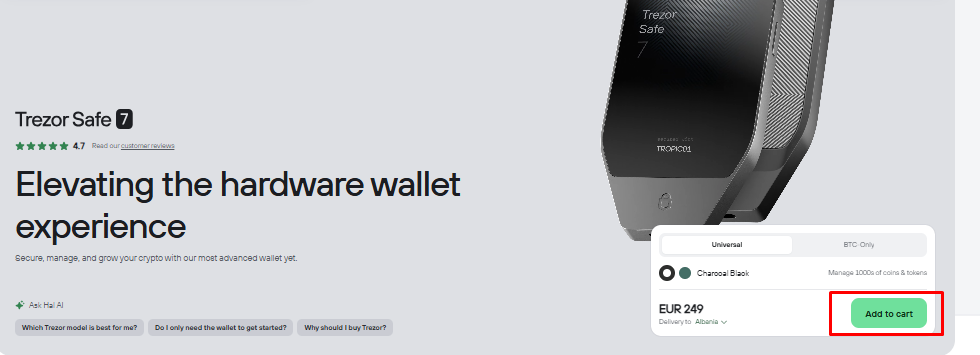
Step 1: Go to https://trezor.io/store
Step 2: Select the product, color, and quantity you want to buy. Then click Add to cart.
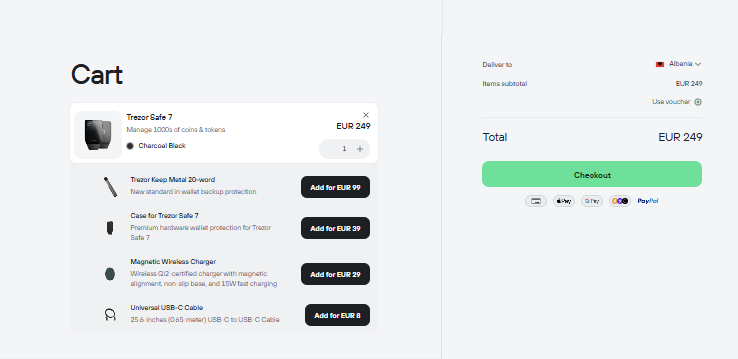
Step 3: Fill in all the payment information, then click Checkout.
Step 4: Carefully inspect the quality of your Trezor wallet and make sure that:
- The outer box has an intact holographic security seal, not torn and with no signs of tampering. Trezor One and Model T have silver seals on both sides of the box, Safe 3 has a holographic seal strip over the connection port, and Safe 5 has a tamper-proof seal. The packaging is wrapped in plastic film, firmly glued, and undamaged.
Trezor wallet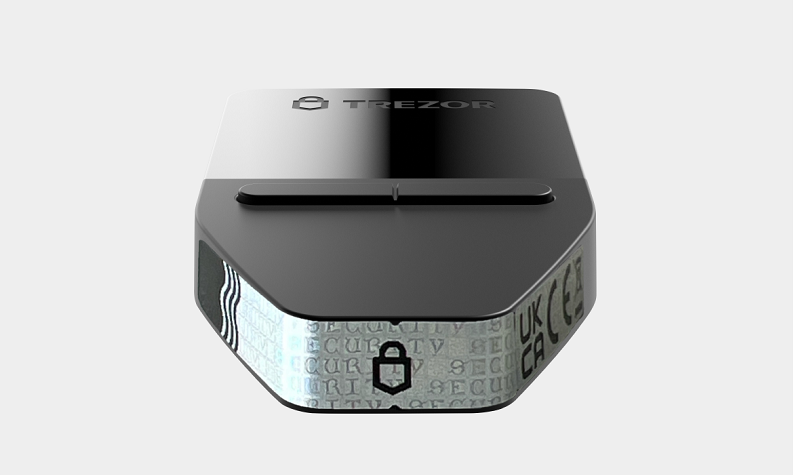
Holographic seal on the connection port of the Trezor Safe 3 (Source: Trezor)
- The box must contain everything: the Trezor wallet, a USB cable (Micro USB for the One, USB-C for the Model T/Safe 3/Safe 5), 2-3 blank sheets of paper for writing down the recovery phrase (recovery seed card), an instruction leaflet, and stickers.
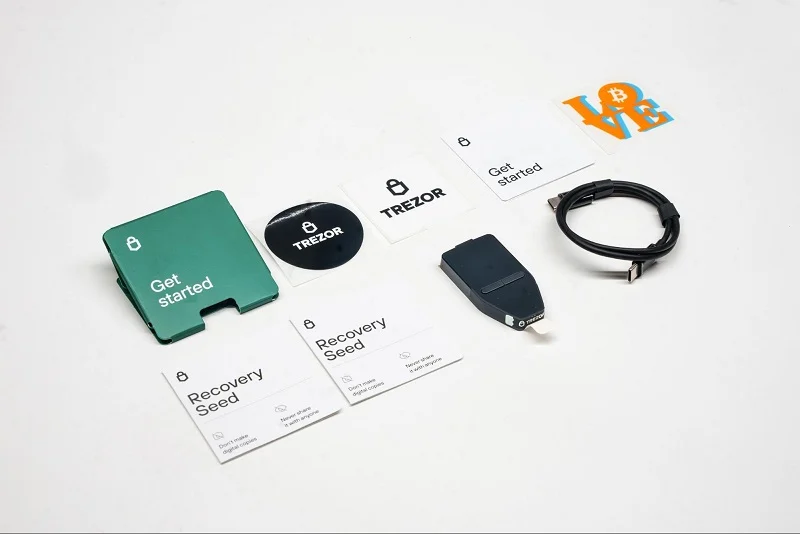
Items inside the Trezor Safe 3 box (Source: Trezor)
- When first connected via Trezor Suite (downloaded from trezor.io), a genuine Trezor wallet will ask you to install new firmware (system software). If the device already has firmware pre-installed and shows an error/warning, stop using it immediately. In particular, the Trezor Safe 3 and Safe 5 will show an “Authenticate device” step to verify authenticity through the EAL6+ Secure Element chip.
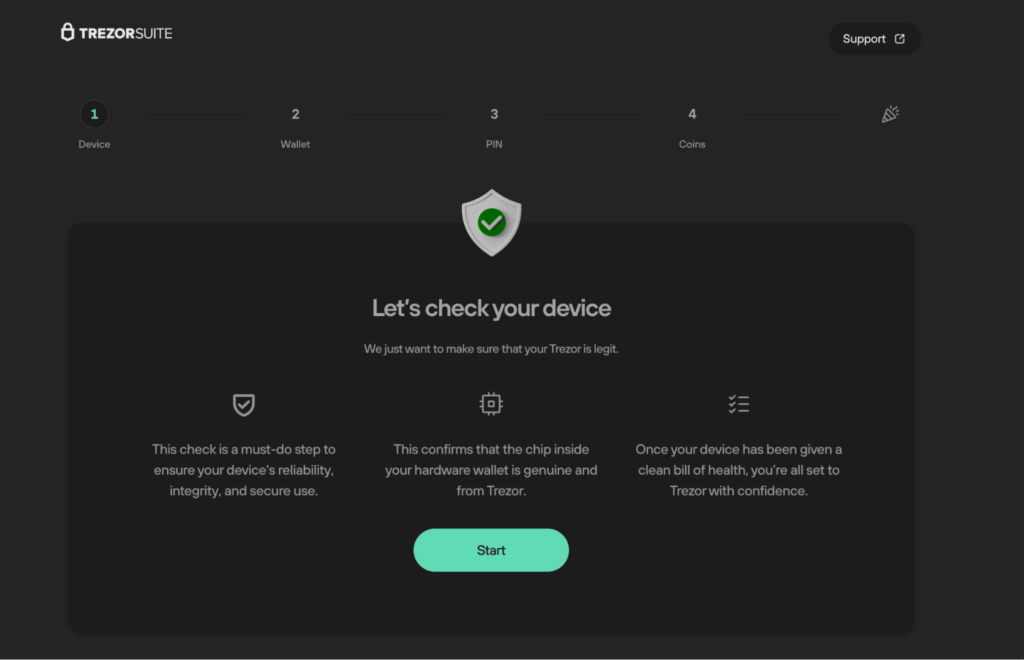
The Safe 3 and Safe 5 have a device-check feature in Trezor Suite (Source: Trezor)
- On first use, a genuine Trezor wallet will ask you to generate the recovery phrase directly on the device screen. If one is already provided in the box or anywhere else, it is very likely a scam, and you should absolutely not follow it.
If you find that the product does not meet these standards, contact Trezor’s support team immediately to resolve the issue.
Initial Wallet Setup
The following are the initial setup steps before using your Trezor wallet, using the Trezor Safe 5 (TS5) as an example.
Step 1: What you need to prepare:
- A Trezor Safe 5 device
- A USB connection cable.
- Download and install the Trezor Suite app on your computer (or use Trezor Suite on the Web).
- A recovery seed card.
- A pen.
Step 2: Open Trezor Suite and plug the TS5 device into your computer’s USB port.
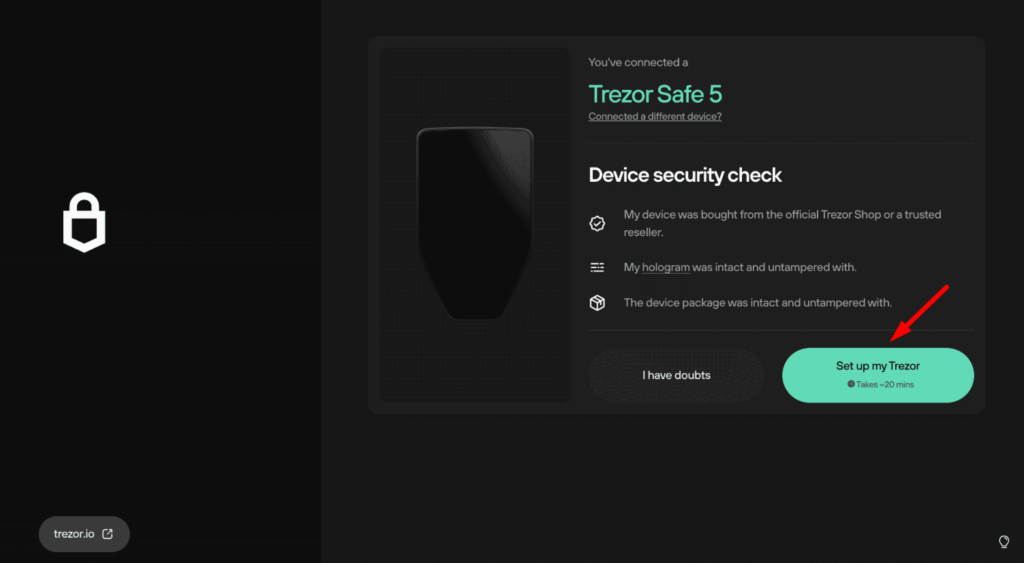
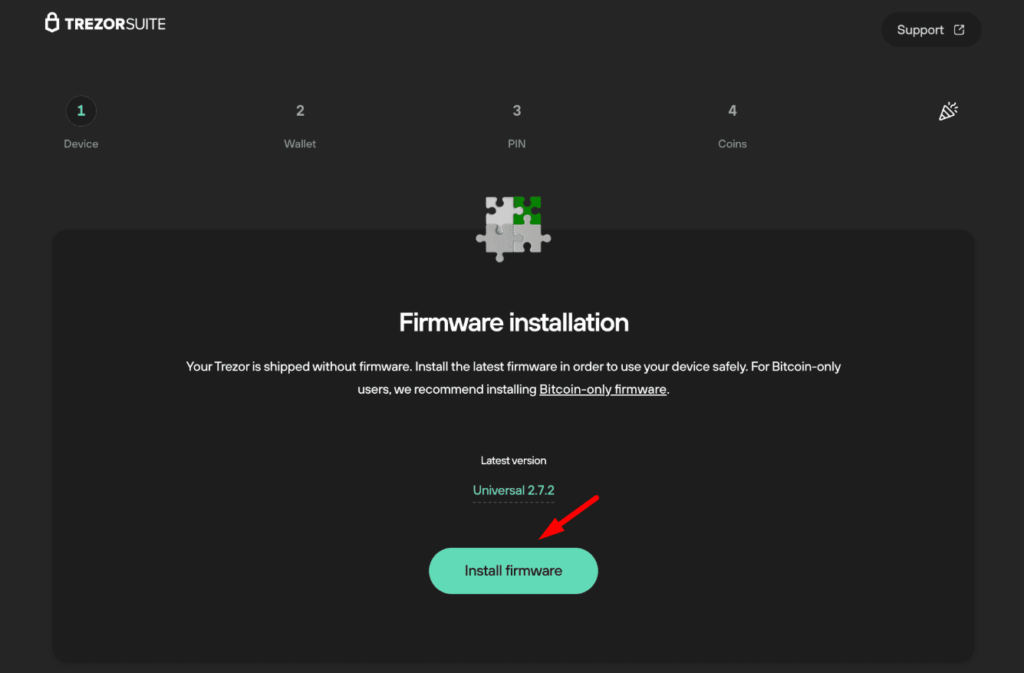
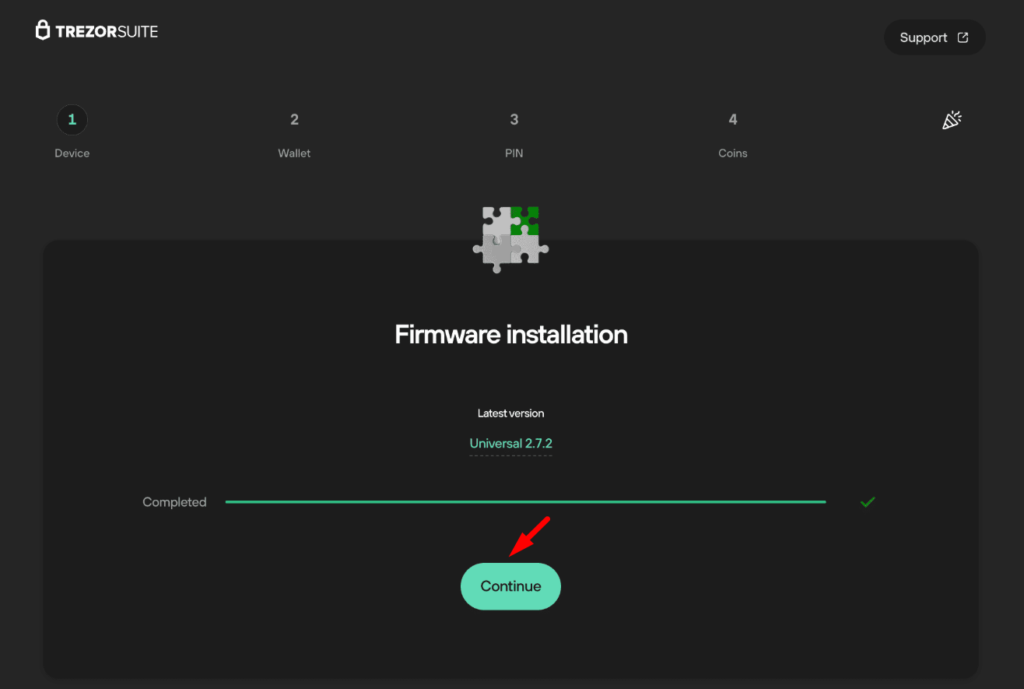
Step 3: Install the firmware and authenticate the device by clicking in order:
- Set up my Trezor
- Install firmware
- Continue
- Start
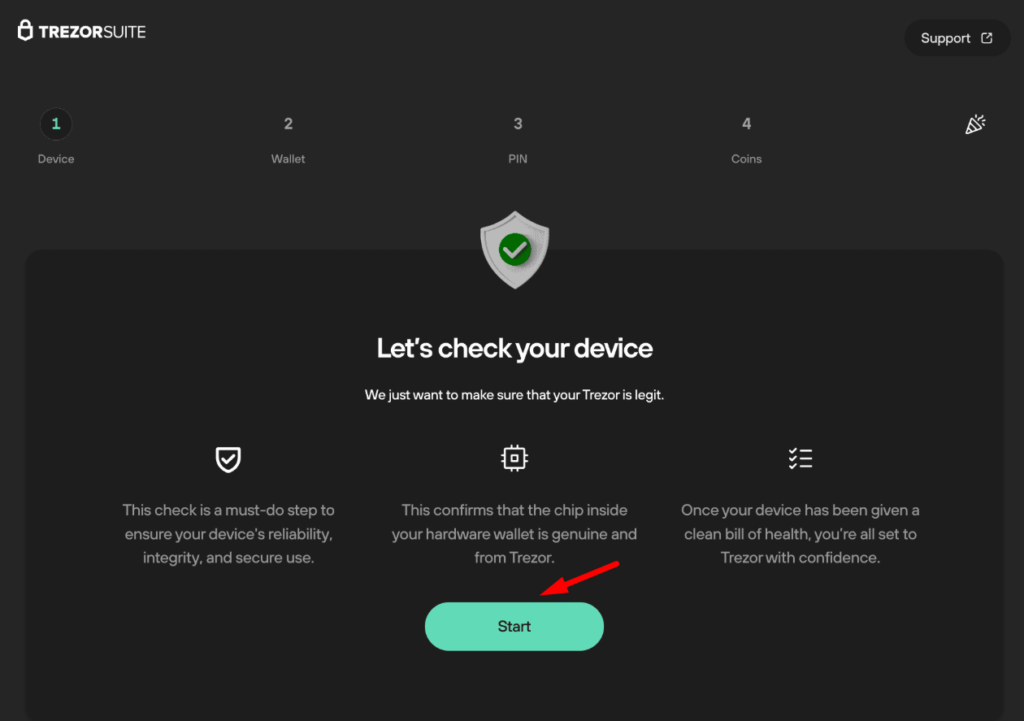
- Continue
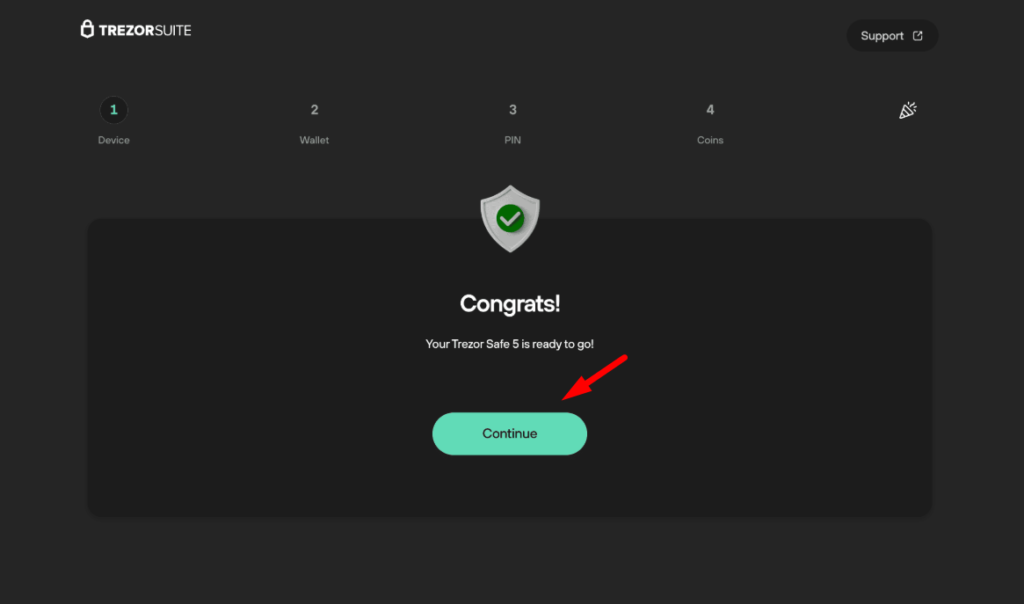
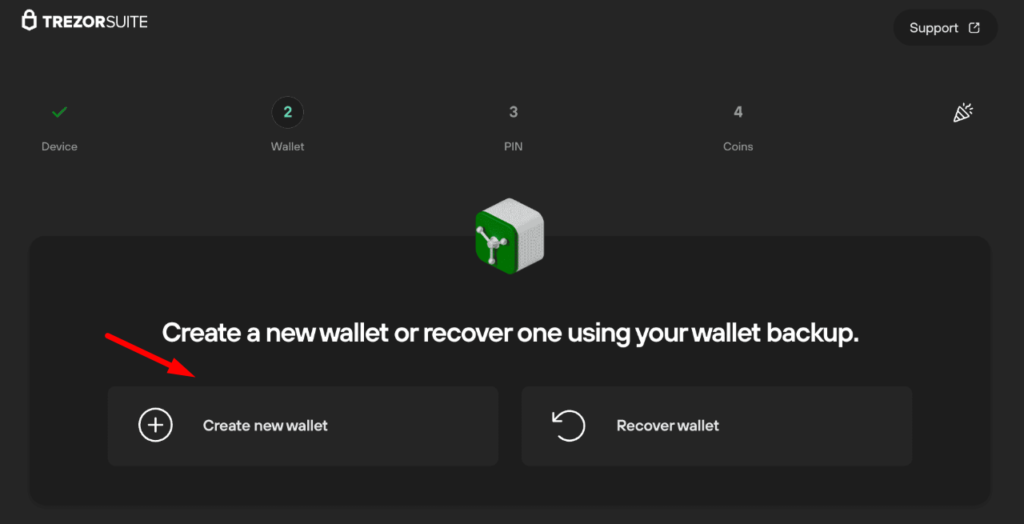
Step 4: Create a new wallet
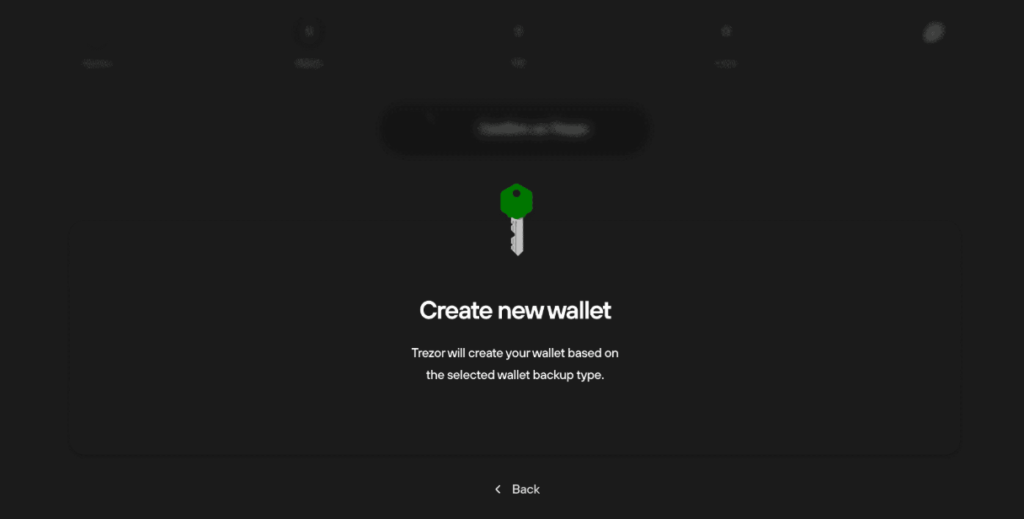
- Click Create new wallet
- Select Single-share Backup
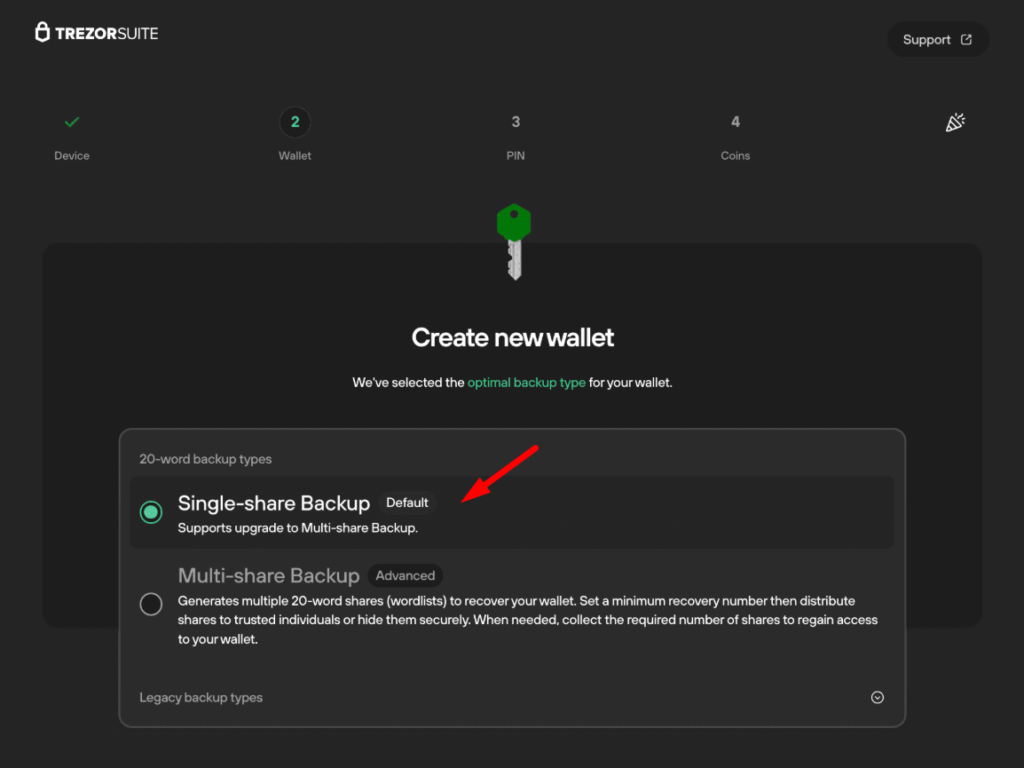
- Confirm on the TS5 device
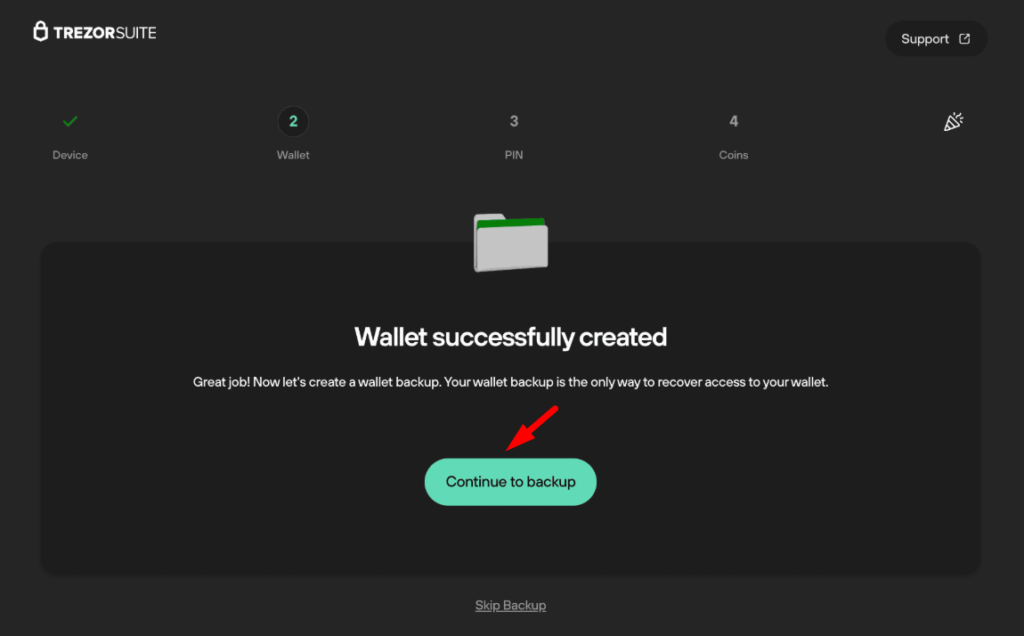
- Click Continue to backup
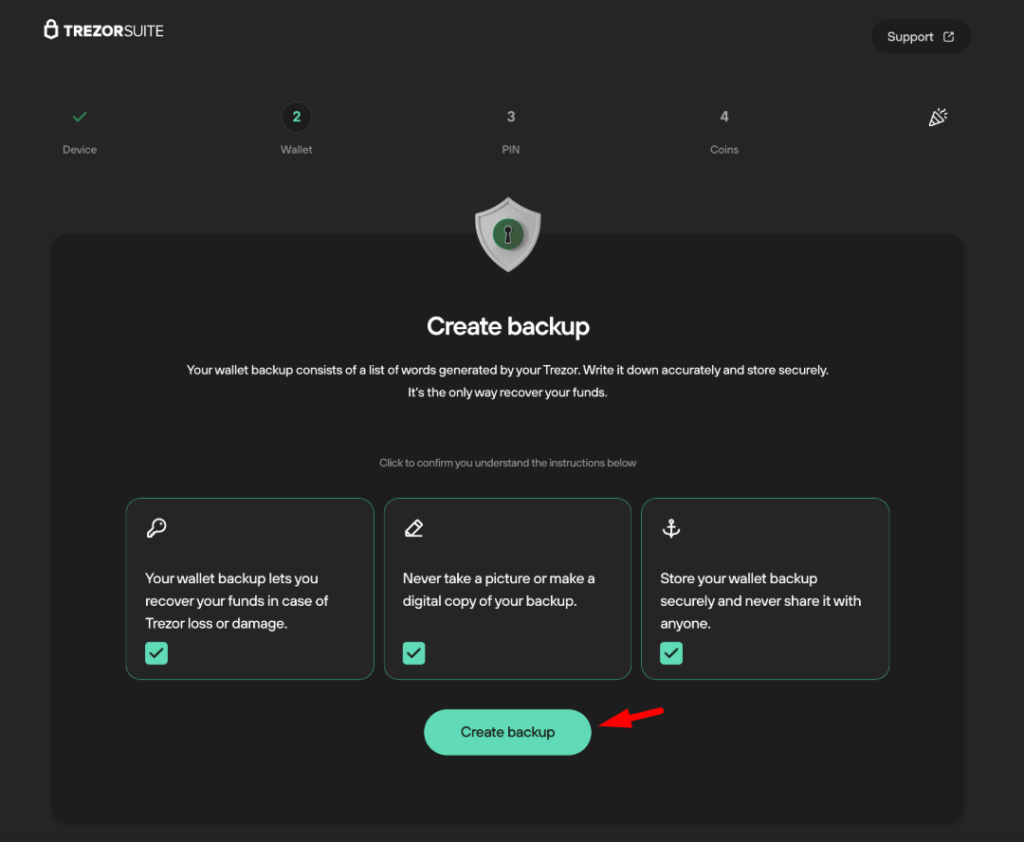
- Click Create backup
- Click Confirm on the TS5 screen, then write down, accurately and in the exact order, all 20 words shown on the screen onto the recovery seed card.
- Check that you have recorded the recovery seed correctly by selecting the words Trezor asks for. Once this is done, the wallet creation step is complete.
Step 5: Create a PIN
- Click Continue to PIN
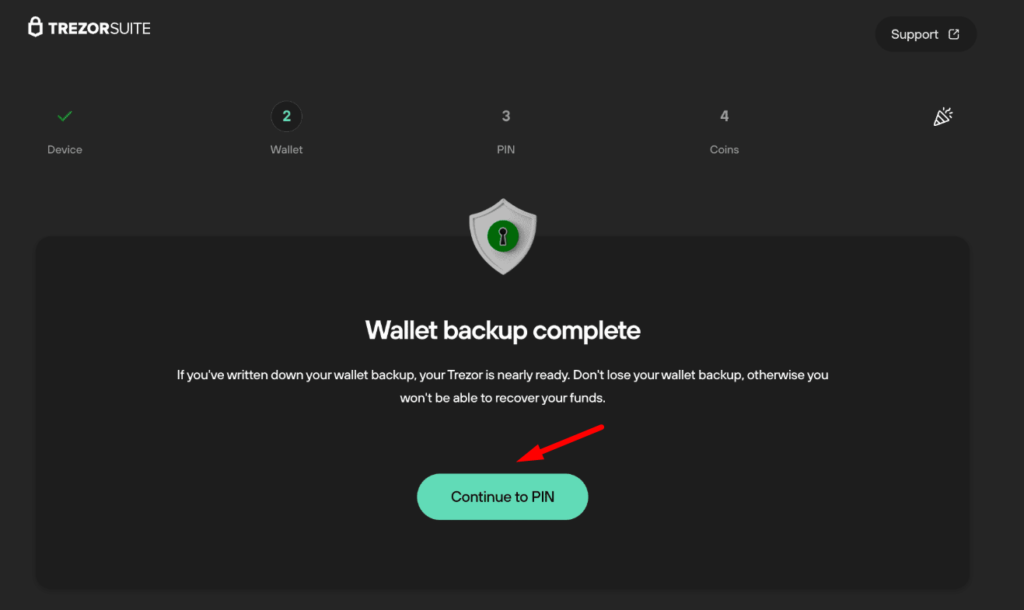
- Click Set PIN
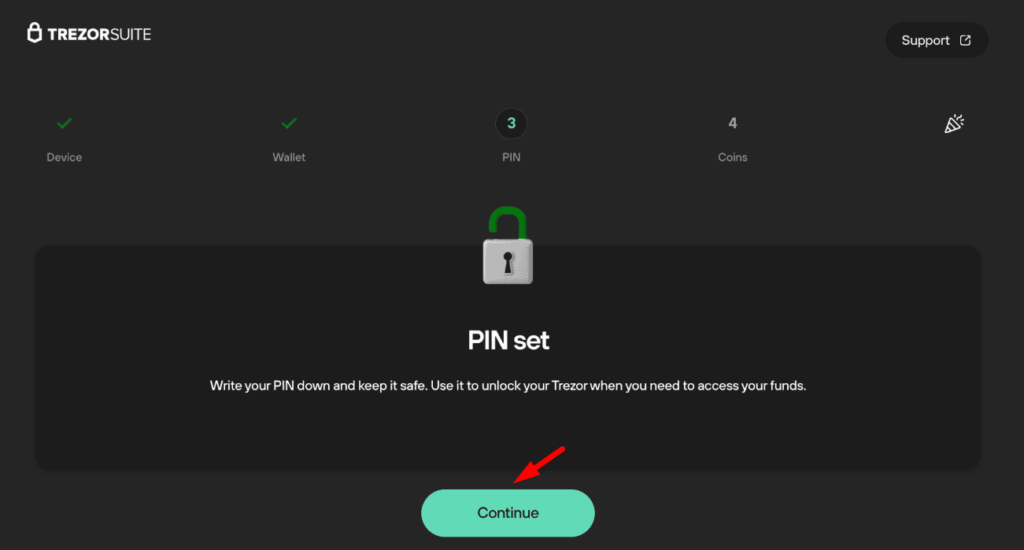
- The TS5 screen will display the question “Turn on PIN protection?“. Just tap the screen to agree, then enter your PIN.
- Finally, click Continue to finish.
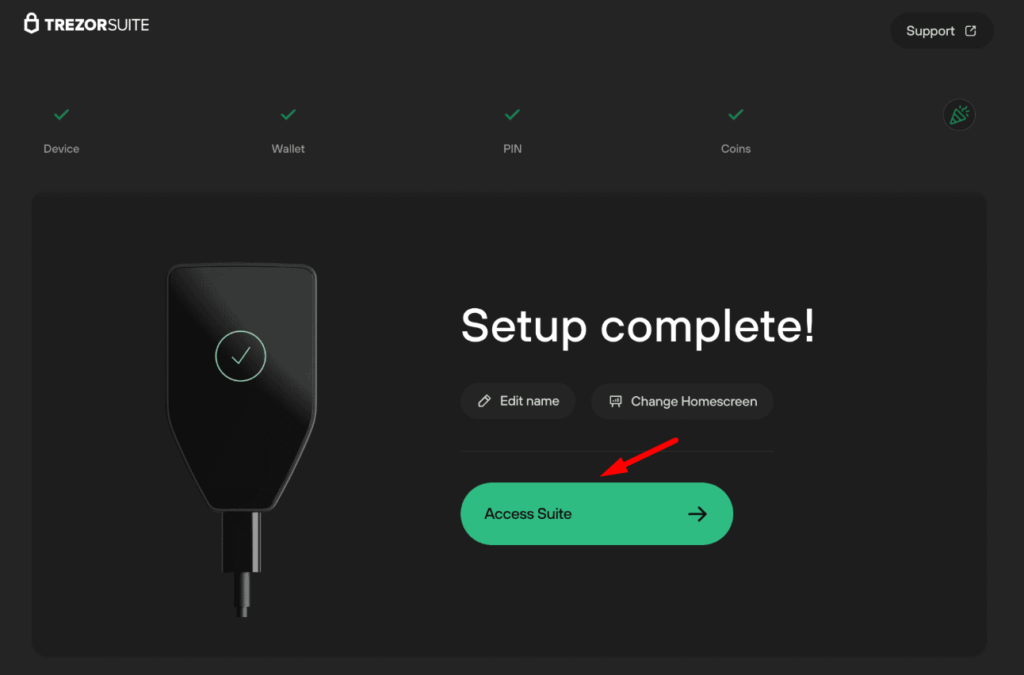
- Select the coins you want to display in the wallet.
- Click Access Suite to complete the entire Trezor Safe 5 setup process.
How to Use the Wallet
Guide to Receiving and Sending Coins
Steps to get your Trezor wallet address to receive coins:
What you need: The Trezor Suite app, a Trezor device plugged into your computer, and a coin balance in another wallet.
Step 1: On the main Trezor Suite interface, select the type of coin you want to receive from the menu list on the left, then click Receive.
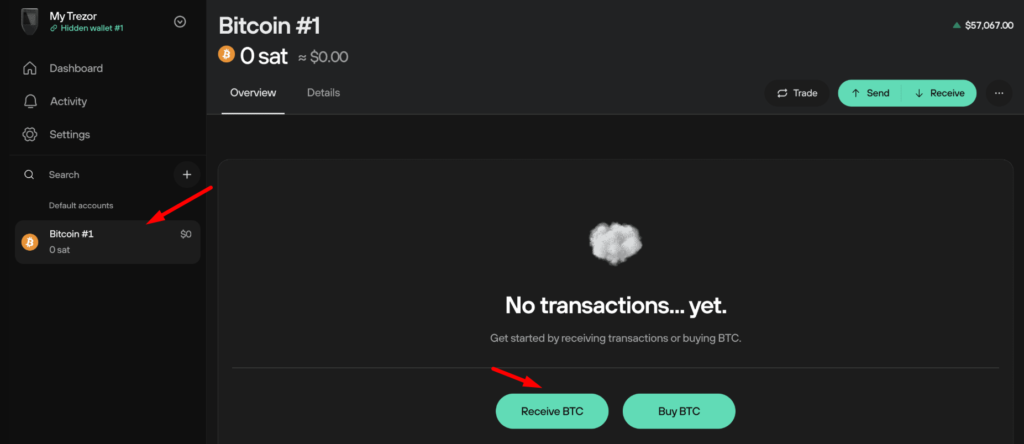
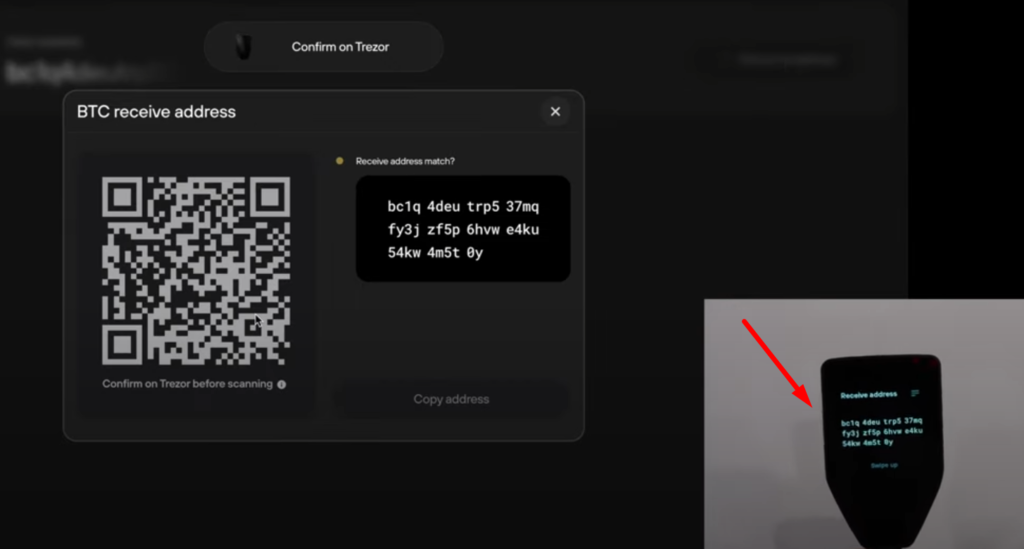
Step 2: Click Show full address
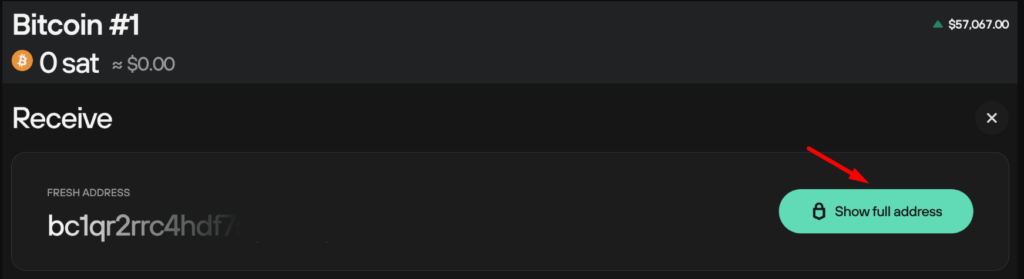
Step 3: Check that the wallet address on Trezor Suite and on the Trezor device match, then confirm the address on the Trezor -> Copy address to get the wallet address, and send coins from the outside to this address.
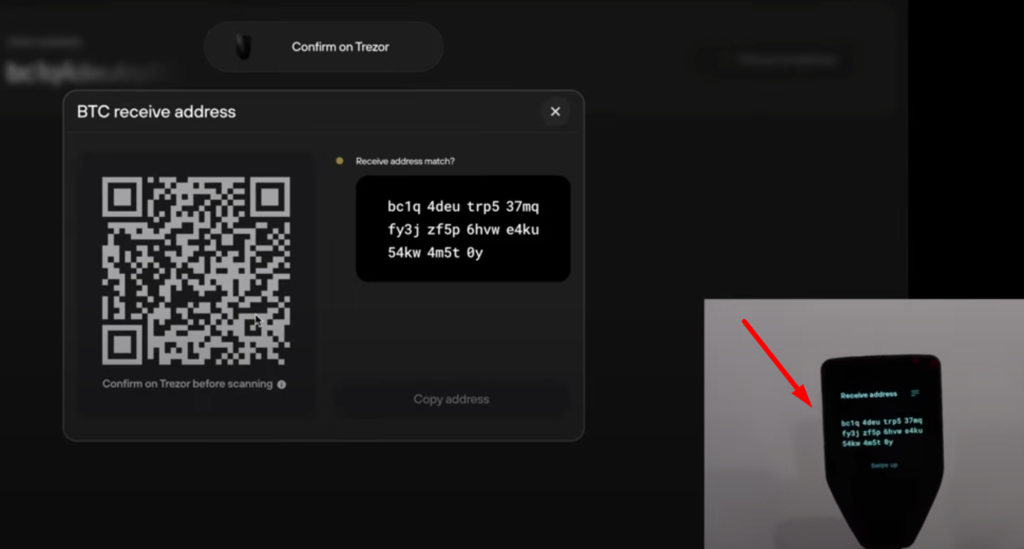
Steps to send coins from your Trezor wallet:
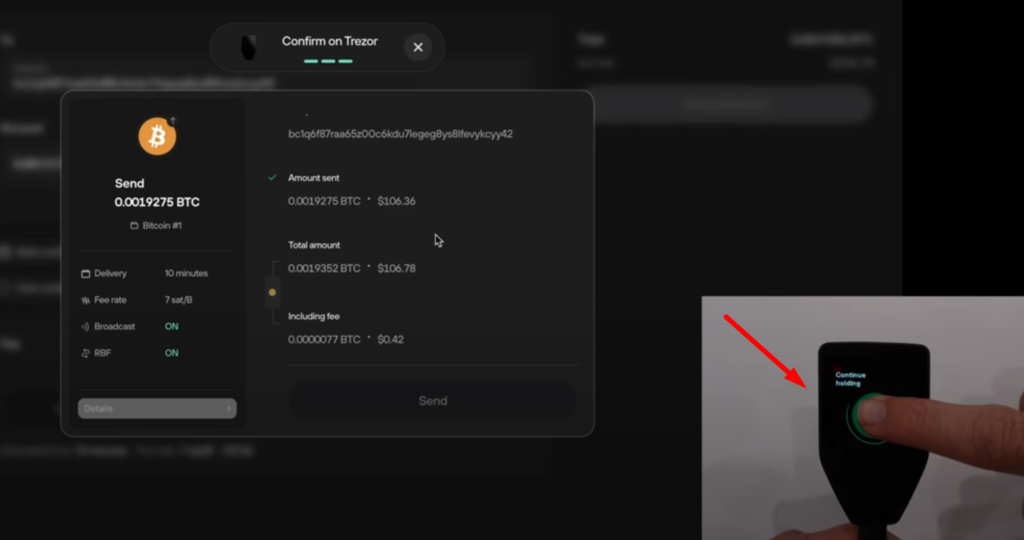
Step 1: On the main Trezor Suite interface, select the type of coin you want to receive from the menu list on the left, then click Send.
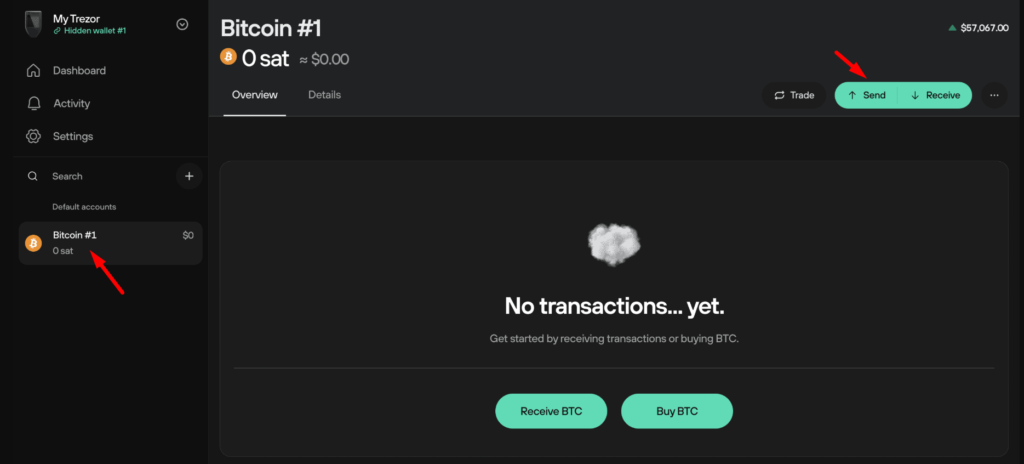
Step 2: Enter the required information: recipient wallet address, amount, and fee level. Then click Review & Send.
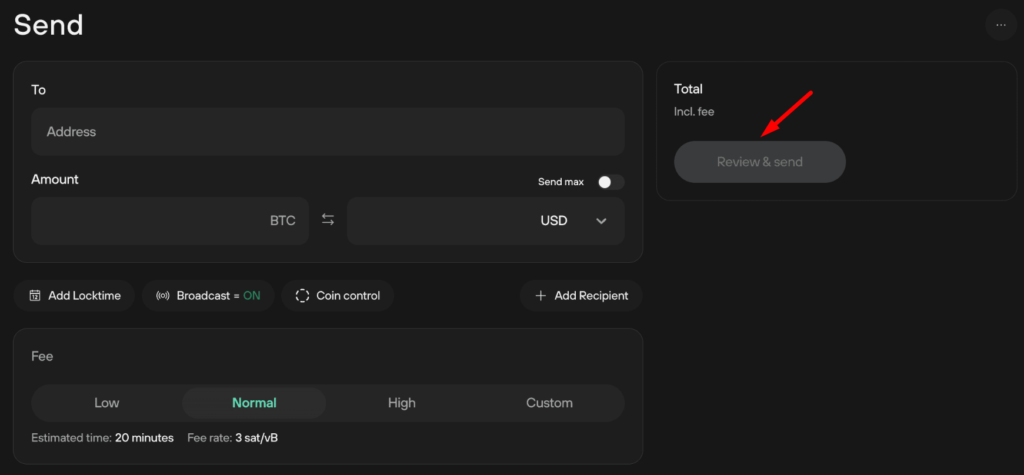
Step 3: Confirm on the TS5 to complete.
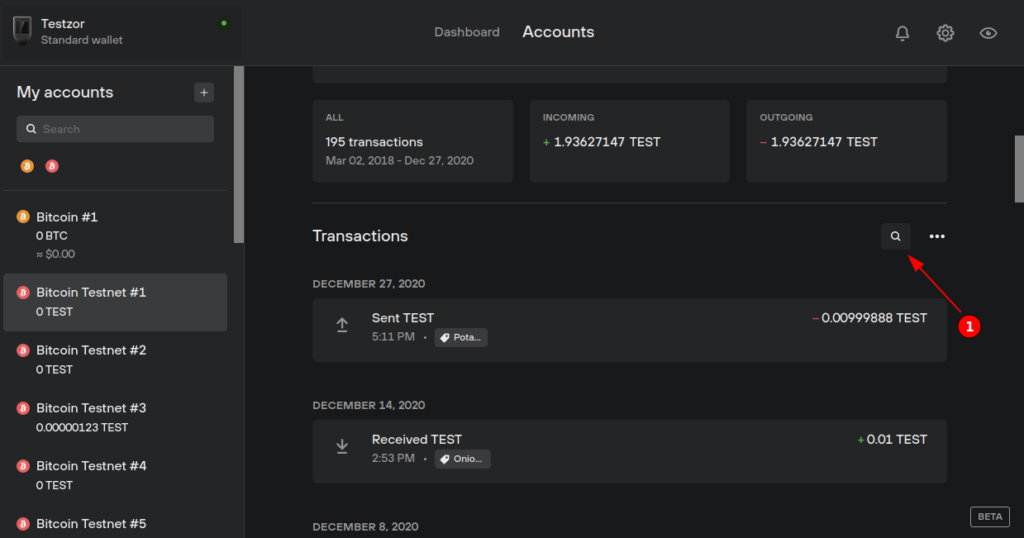
Step 4: Check the coin transfer status by clicking the transaction you want to view in the Transactions section.
Connecting Trezor to a MetaMask Wallet
What you need: The Trezor Suite app, a Trezor device plugged into your computer, and a MetaMask wallet.
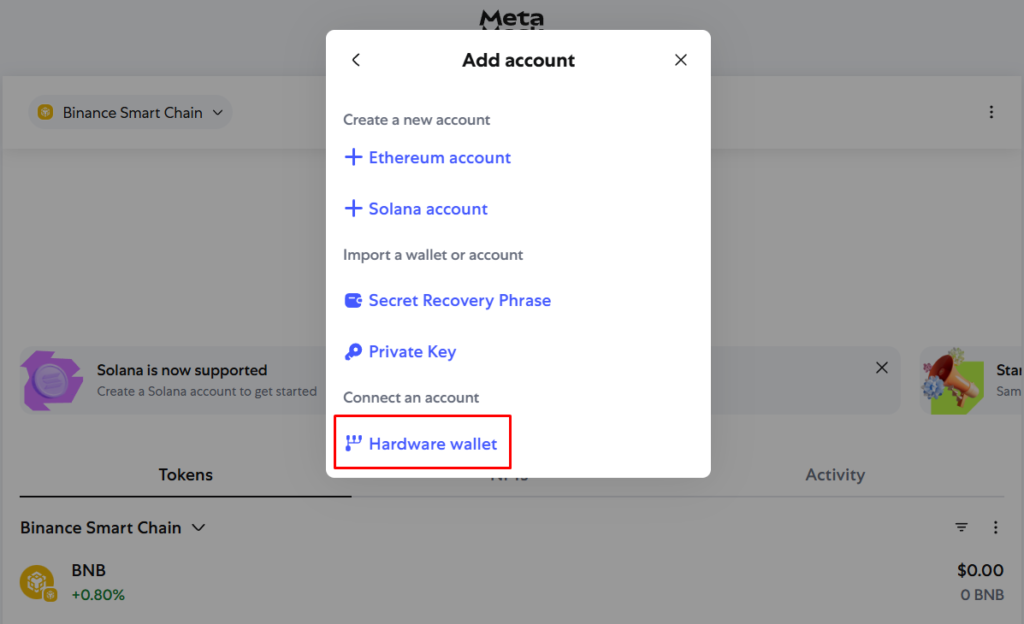
Step 1: Click Account -> Add account or hardware wallet -> Hardware wallet
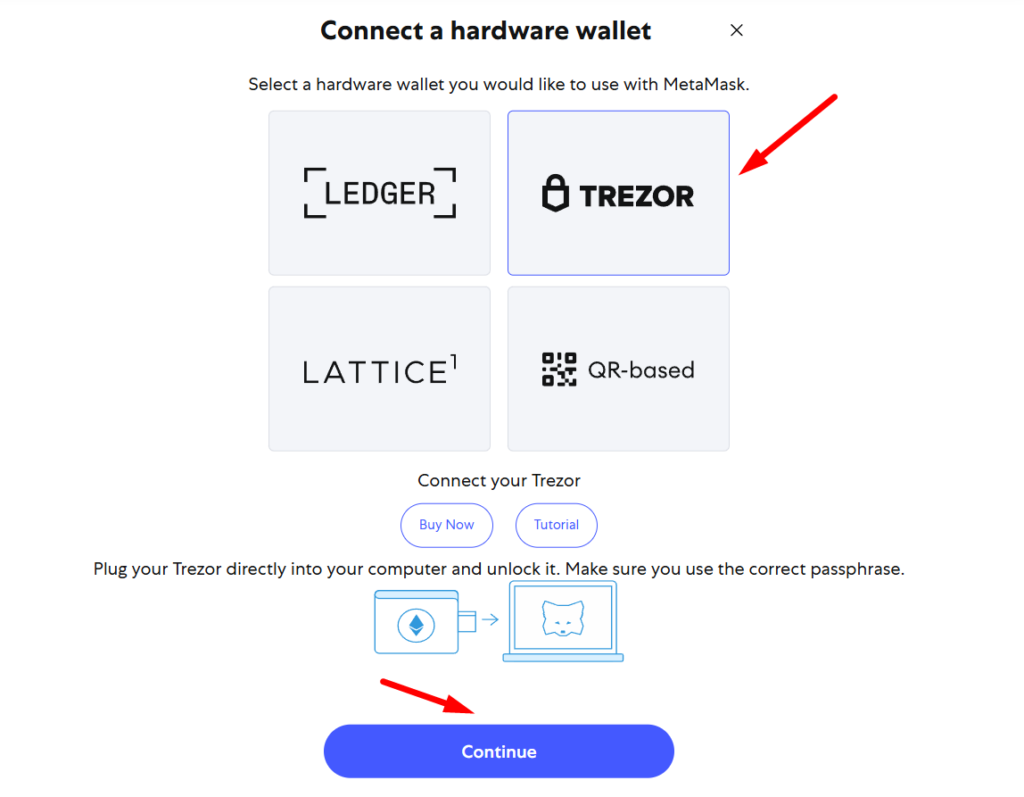
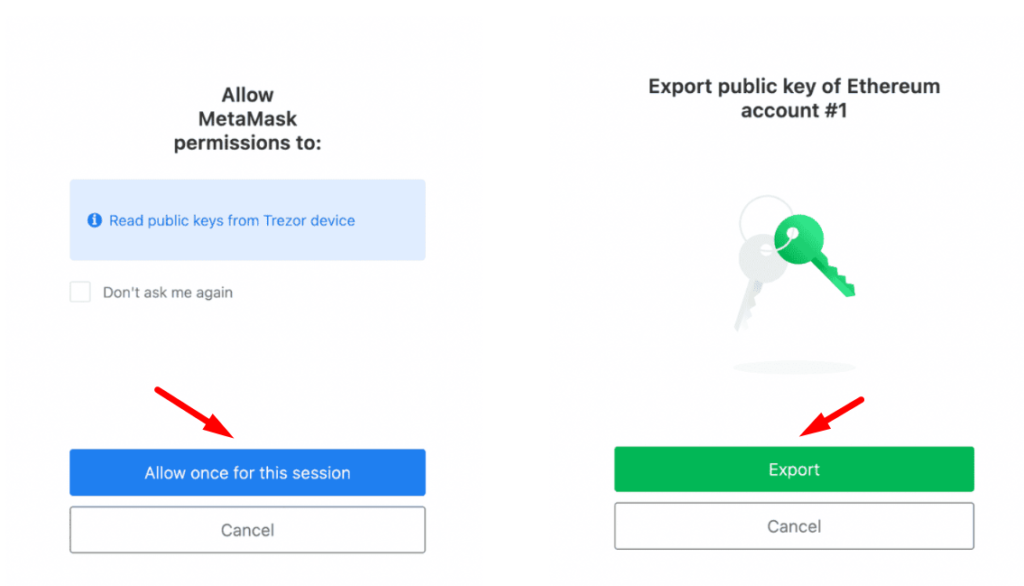
Step 2: Select Trezor -> Continue -> click in order Allow once for this session -> Export
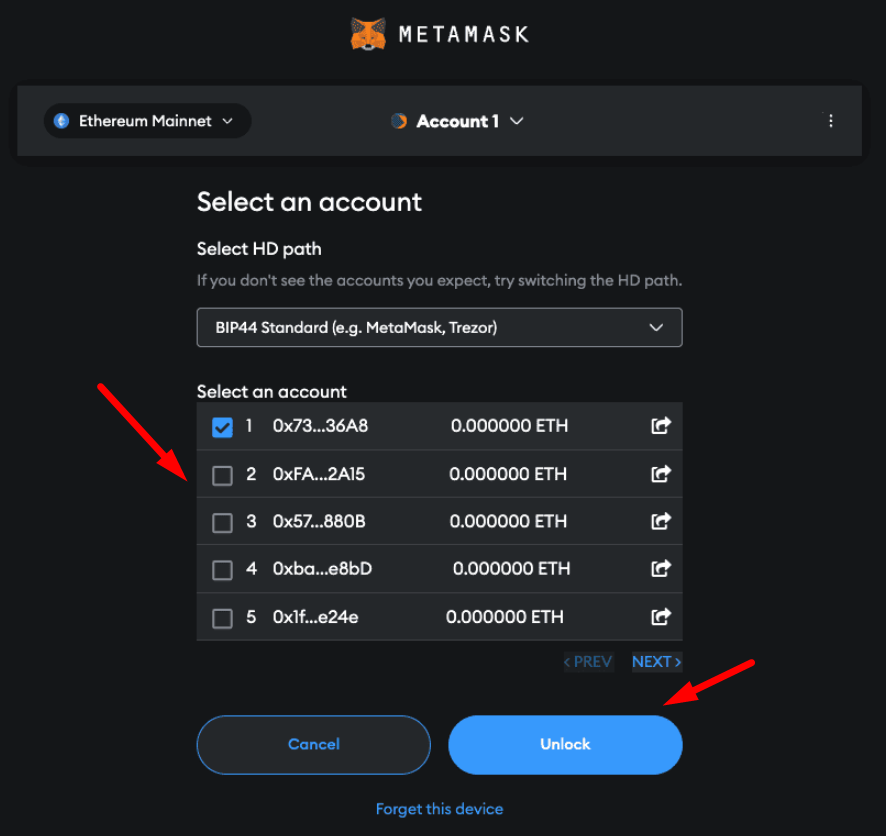
Step 3: Select the account (in the Trezor wallet) that you want to connect to MetaMask -> Unlock to complete the connection.
Updating Firmware
Updating your Trezor wallet’s firmware improves security by patching vulnerabilities, improves the interface and features (such as Shamir Backup), fixes bugs, and adds support for newly supported cryptocurrencies.
Note: Only update firmware through Trezor Suite to ensure it is genuine. Avoid downloading from unknown sources, because fake firmware can steal your private keys.
Steps to update firmware:
What you need: The Trezor Suite app and a Trezor device plugged into your computer.
Step 1: When a new firmware version is available, Trezor Suite will show a notification at the top of the interface. Just click Update now to proceed.
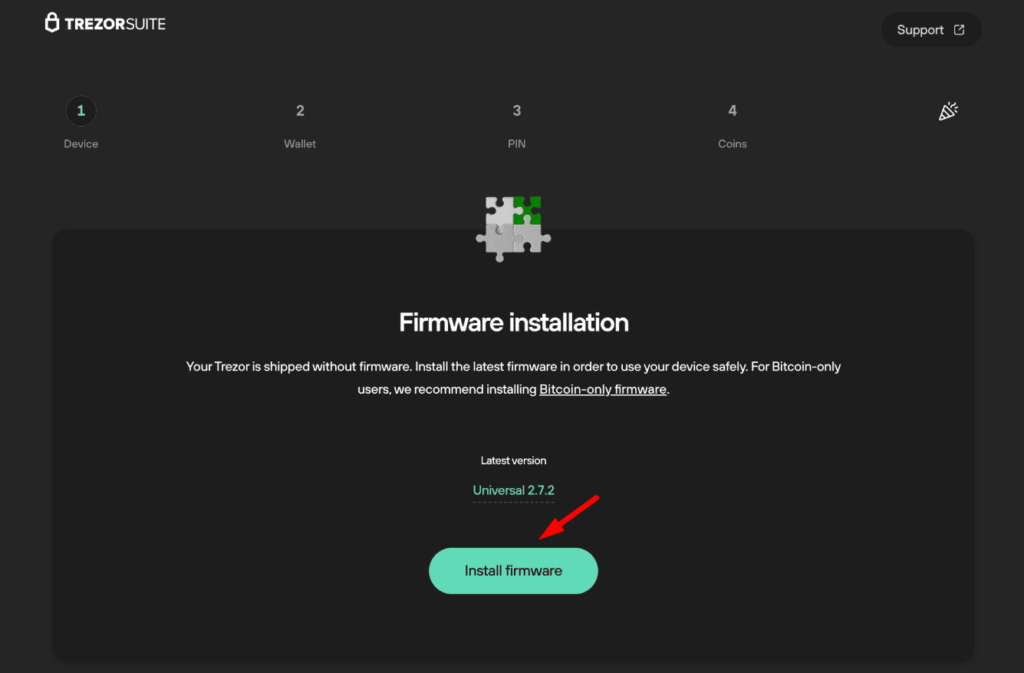
Step 2: Click Install firmware
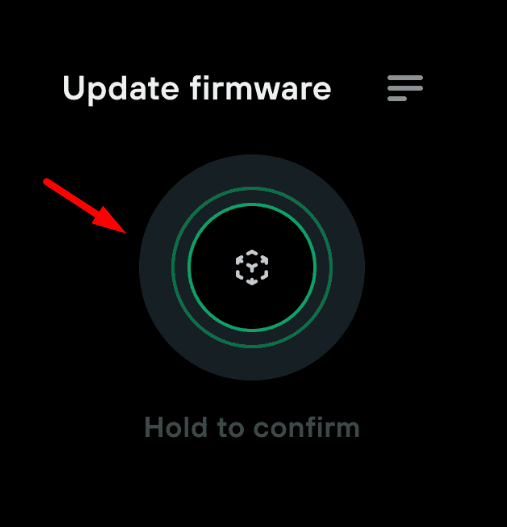
Step 3: Press and hold the Trezor device screen to confirm.
Recovering an Existing Wallet
What you need: The Trezor Suite app, a Trezor device plugged into your computer, and your recovery phrase (recovery seed).
Step 1: In the Trezor Suite interface, install the firmware as described in the “Initial Wallet Setup” section (steps 1 – 3).
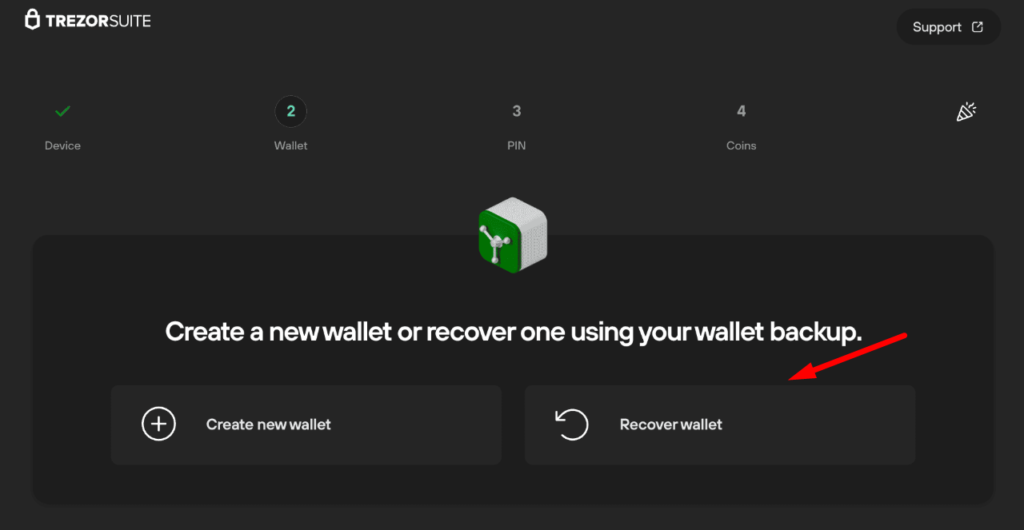
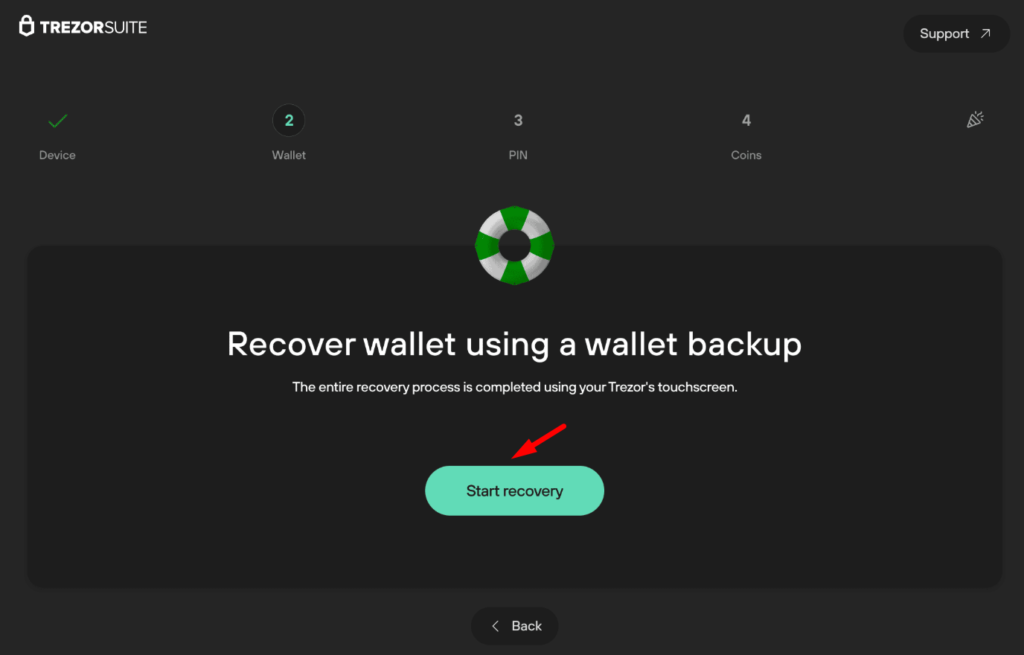
Step 2: Click Recover Wallet -> Start recovery
Step 3: Tap to continue to agree to the terms shown on the Trezor device.
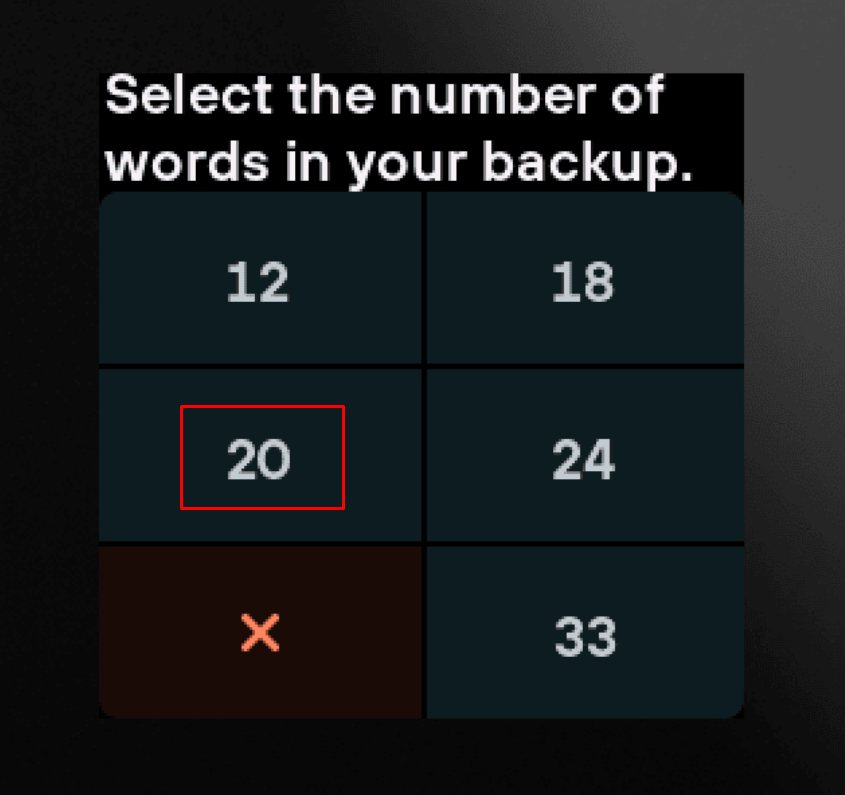
Step 4: Select the number of recovery words on the Trezor device -> Tap to continue
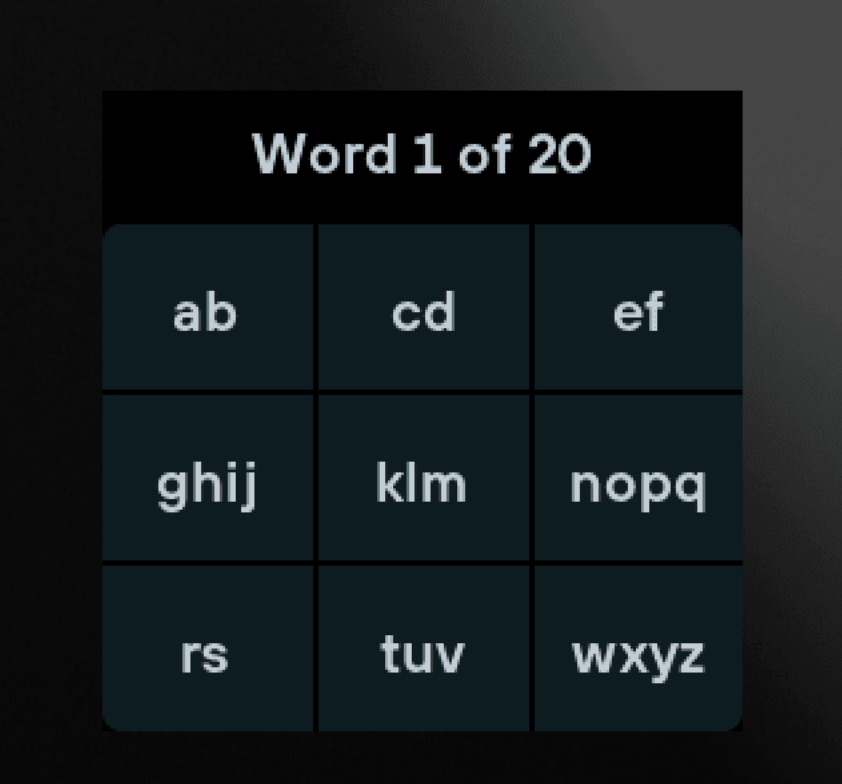
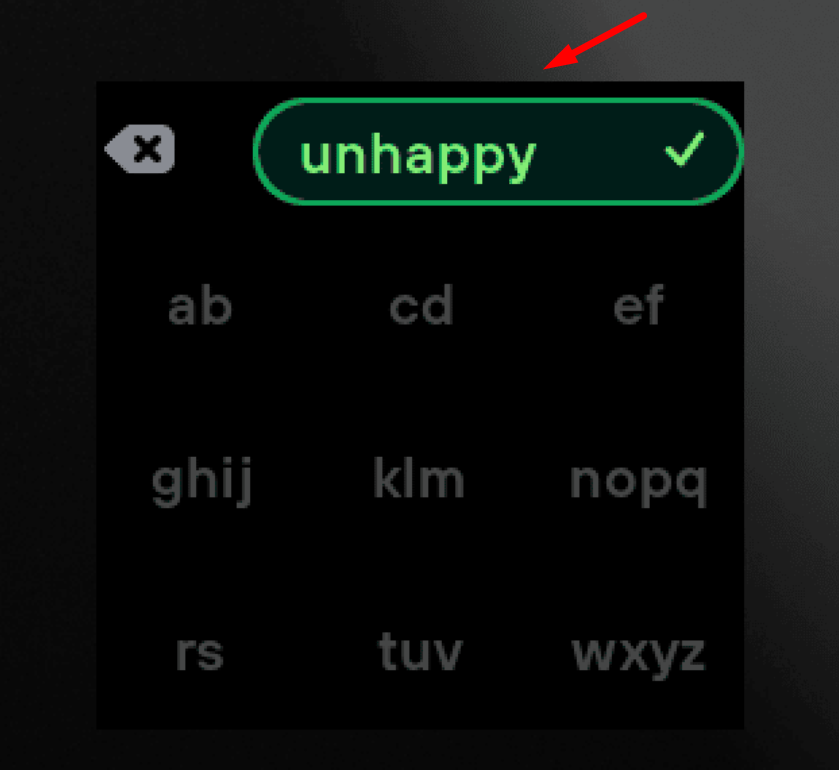
Step 5: Enter all 20 recovery words accurately, then tap the green check mark to confirm the word at the top of the screen.
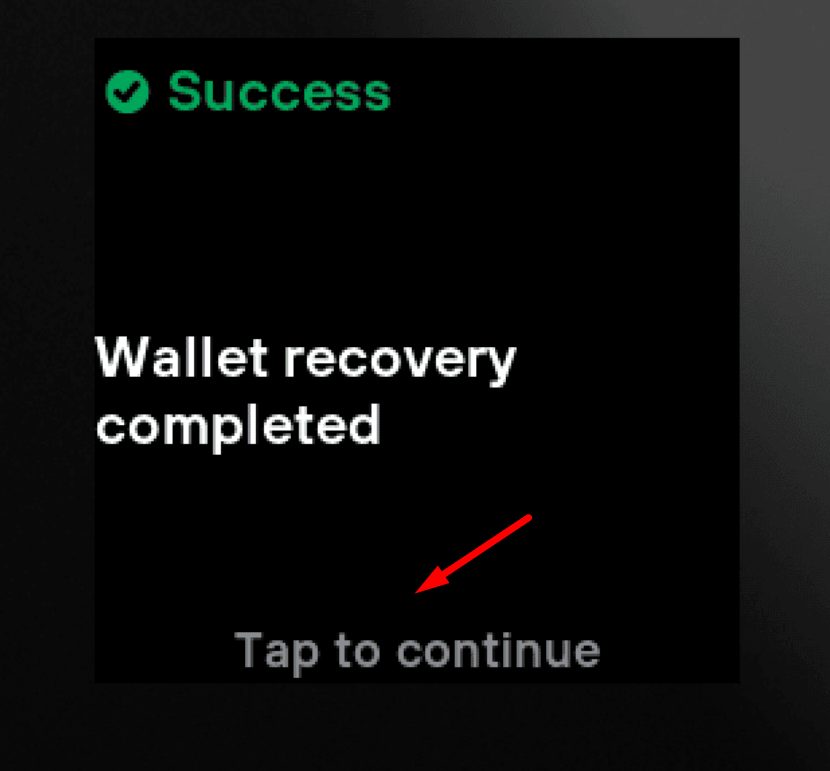
Step 6: When the screen shows Wallet recovery completed, it has succeeded -> Tap to continue to finish.
Security Notes
Here are some notes for staying secure when using your Trezor wallet:
- Only buy a genuine Trezor cold wallet from trezor.io or an authorized reseller in Vietnam (bitcoinvn.io, vitienbitcoin.com).
- Carefully inspect the box and the device, making sure the box is intact and has not been opened, and that the hologram seals on the box/connection port are intact and not torn.
- Write down the recovery phrase accurately on paper and store it in a safe place; do not store it online.
- Only install/update firmware through Trezor Suite downloaded from trezor.io.
- Set a strong PIN that is not the same as those used elsewhere, and add a passphrase (for Model T, Safe 3, Safe 5) for additional protection.
- Only connect your Trezor cold wallet to a secure computer/phone that is free of viruses.
- Carefully check the receiving wallet address and the amount on the Trezor screen before confirming.
- Carefully vet dApps before confirming any interaction to avoid scams.
Frequently Asked Questions About Trezor Wallets
What is a Trezor wallet, and how does cold storage protect my crypto?
A Trezor is a hardware wallet that protects the private keys used to authorize cryptocurrency transactions. The assets themselves remain on their respective blockchains. Trezor signs transactions through the dedicated device, helping keep private keys isolated from the internet-connected computer or phone used to manage the wallet.
Cold storage reduces some online risks, but it does not eliminate phishing, malicious smart contracts, theft of recovery backups, or mistakes when approving transactions.
What is the difference between Trezor Safe 3, Safe 5, and Safe 7?
The Safe 3 is the simpler, more budget-conscious option with a monochrome display and a dedicated secure element. The Safe 5 adds a color touchscreen and haptic feedback for more comfortable interaction. The Safe 7 offers a larger high-resolution display, Bluetooth connectivity, Qi2-compatible wireless charging, and two secure elements alongside a hardened main microcontroller.
For basic long-term storage, the Safe 3 may be sufficient. The Safe 5 suits users who value a more comfortable interface, while the Safe 7 is especially attractive if you want wireless mobile use.
Why does open-source software and hardware matter for crypto security?
Open source allows independent researchers to inspect the code and, where designs are published, examine how components are intended to work. This improves transparency and can help security issues be identified and corrected.
It does not guarantee that software is bug-free or that every physical component is free from risk. You should still buy from a trusted source, verify the device, keep firmware updated, and protect your recovery backup.
How do I set up a hidden wallet using a Trezor passphrase?
First create and safely store a valid wallet backup. Then enable passphrase functionality and enter your chosen passphrase through the supported workflow. Trezor combines the backup and passphrase to generate a distinct wallet. You must reproduce the exact passphrase to access that wallet again.
A forgotten or mistyped passphrase can make the wallet appear empty or leave its funds inaccessible. Store the passphrase securely and separately from your recovery backup, and test access before depositing significant funds.
What is Shamir Backup, and how does it help prevent loss of a seed phrase?
Shamir Backup uses SLIP39 to split a wallet backup into multiple shares, with a threshold number required for recovery. In a three-of-five configuration, any three of the five shares can reconstruct the backup, while fewer than three are insufficient.
This can make recovery more resilient if one share is lost, but it adds operational complexity. Keep the shares separate, make sure enough remain available, and confirm the supported format and recovery procedure for your particular device.
Can I connect Trezor to MetaMask, Rabby, and Web3 dApps?
Yes. Trezor supports MetaMask, Rabby, and other compatible wallet applications. These applications provide interfaces for accessing supported networks and decentralized applications, while the Trezor device remains responsible for signing transactions.
Always check what you are signing. Hardware security cannot prevent you from voluntarily approving a malicious contract interaction or token allowance.
What happens if my Trezor device is lost, stolen, or damaged?
If you still have a valid wallet backup and any required passphrase, you can generally restore access using a compatible replacement wallet. Losing the physical device does not itself mean that your cryptocurrency has disappeared from the blockchain.
If the device is stolen, use a replacement device to recover your wallet and consider moving assets to a newly generated wallet if you suspect your PIN or recovery information has been compromised. If you used a passphrase, you will need the exact original one. If you have lost both the necessary backup and passphrase, recovery may be impossible.
Is Trezor completely safe from hackers?
No hardware wallet can guarantee absolute safety. Trezor’s offline signing, open-source approach, and device security features can reduce important categories of risk, but attackers may still target your recovery words, trick you into signing a transaction, compromise a computer, or exploit vulnerabilities in software and connected applications.
The best approach is to combine a verified device with strong backup practices, careful transaction review, current firmware, and a healthy suspicion of unsolicited support messages.
Final Verdict
Trezor remains a compelling option for cryptocurrency users who want to take control of their private keys without giving up convenient asset management and Web3 access. Its open-source philosophy, multiple hardware models, secure-element options, recovery features, and integration with Trezor Suite and compatible third-party wallets give it a strong position in the hardware-wallet market.
The Safe 3 is a practical choice for many long-term holders, the Safe 5 makes regular use more comfortable, and the Safe 7 adds wireless convenience and a more layered hardware design. The best model is the one that fits your actual workflow—not necessarily the most expensive one.
But I would put your recovery plan ahead of the model comparison. Buy from a trusted source, authenticate the device, store your backup offline, understand the consequences of using a passphrase, and review every transaction before signing. Those habits are what turn a hardware wallet from a piece of security hardware into a genuinely useful self-custody setup.
Editorial note: This guide draws on Trezor’s published product specifications and documentation. It is not a claim of hands-on physical testing or an independent security audit. Product capabilities and compatibility can change, so verify the latest official documentation before purchasing or moving funds.